Testing page

Strings that can be used on the page

branded-app-name = Meescan

branded-library-name = Meescan Customer

branded-library-code =

branded-organization-name =

Screenshots

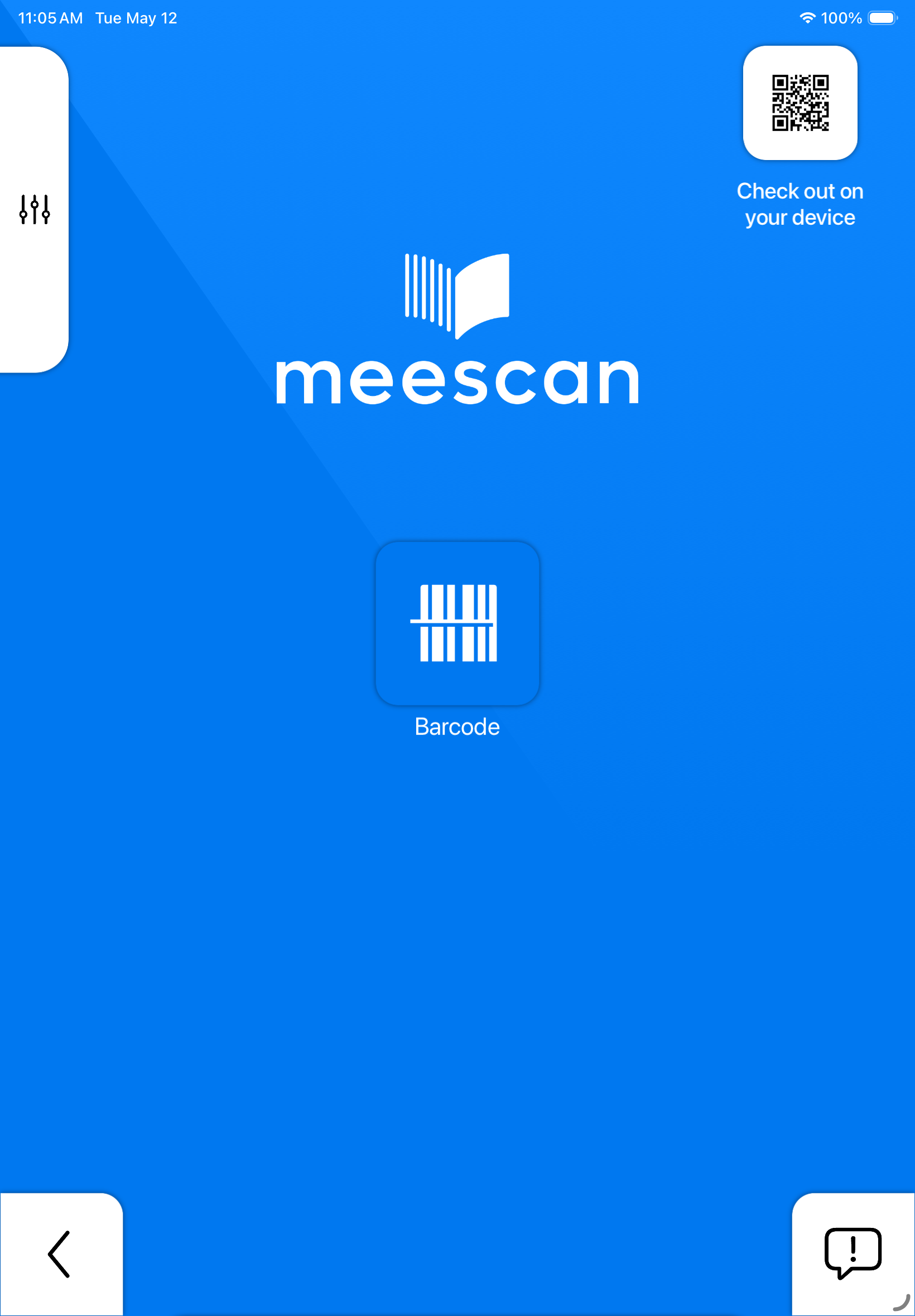
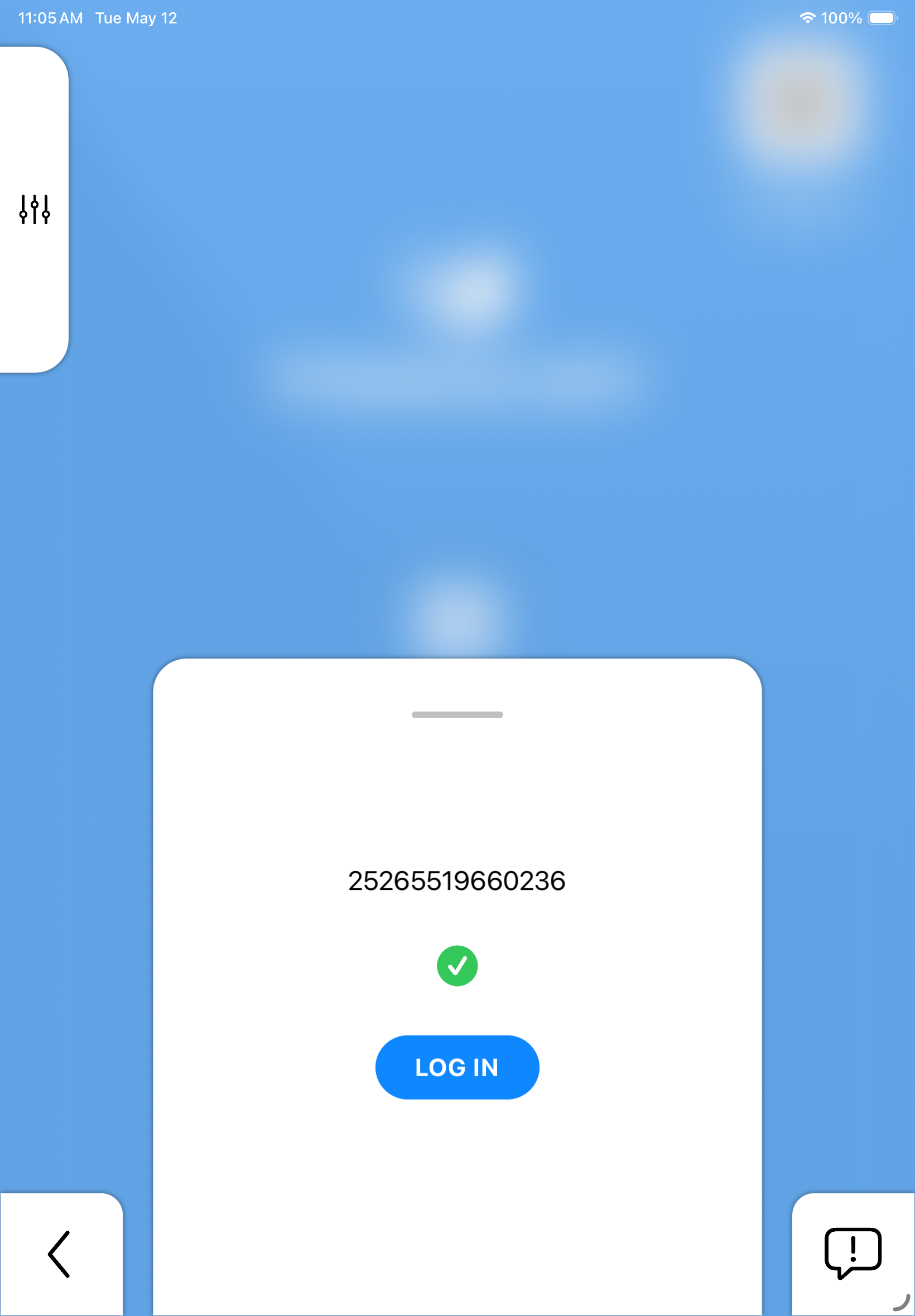
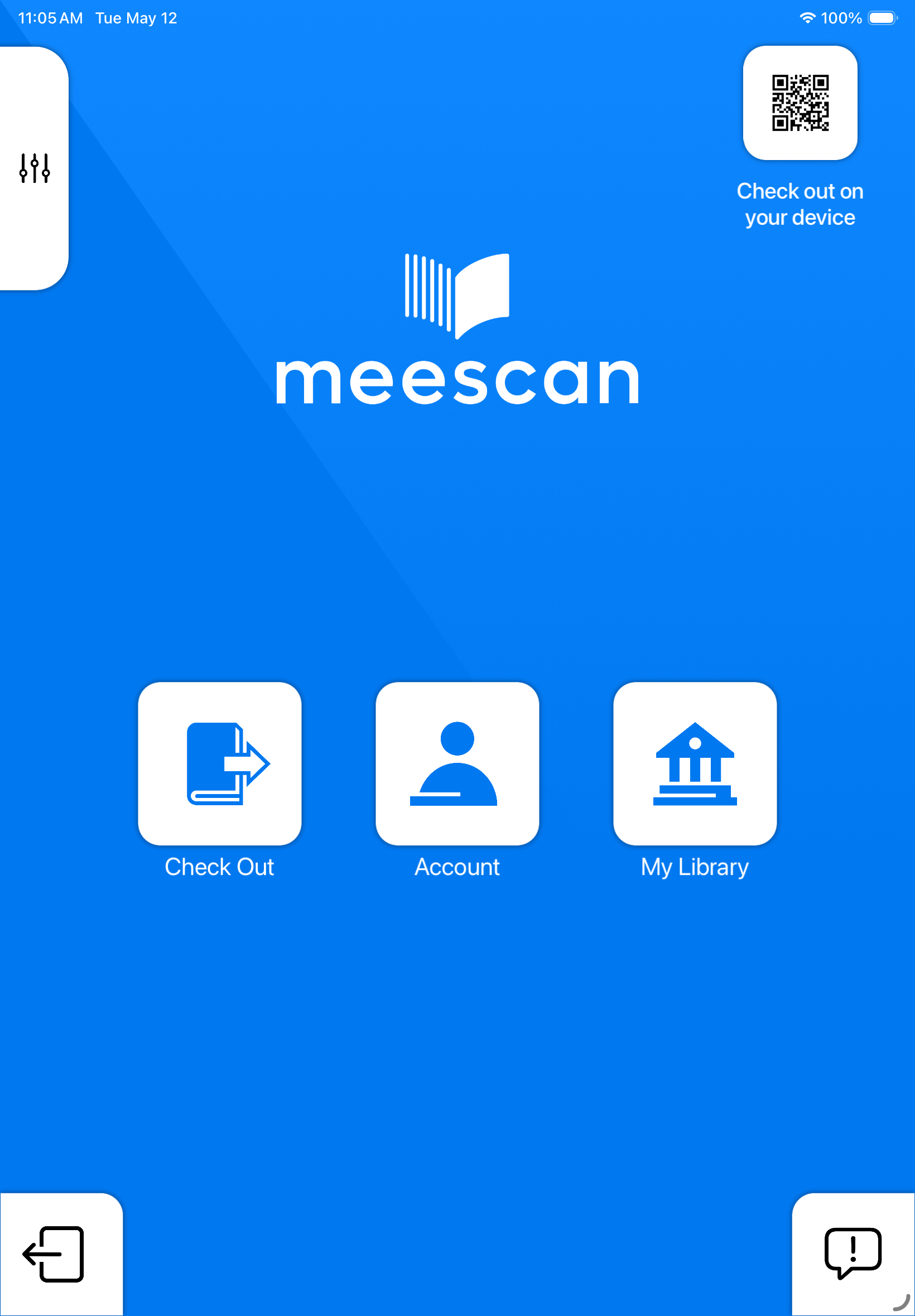
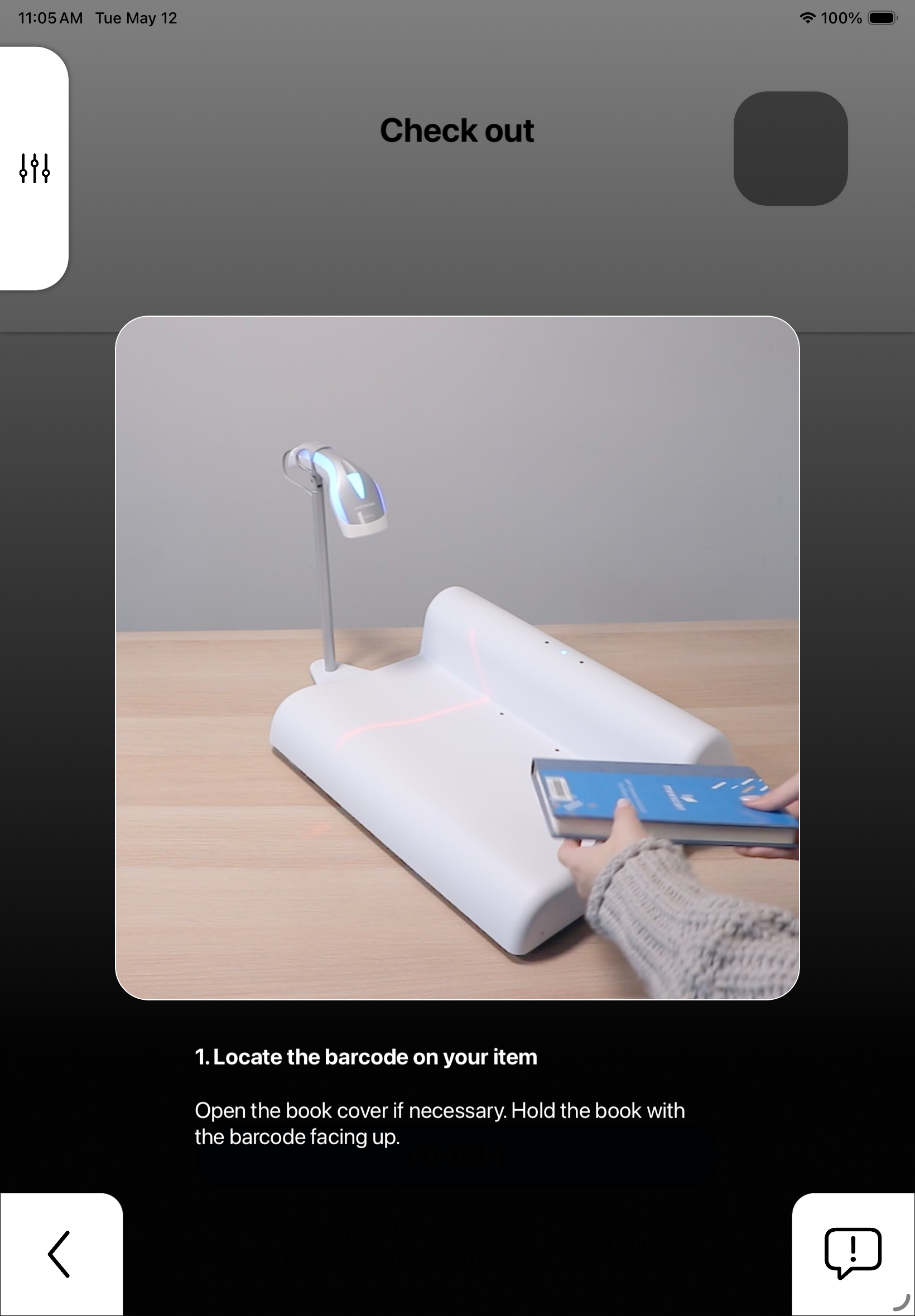
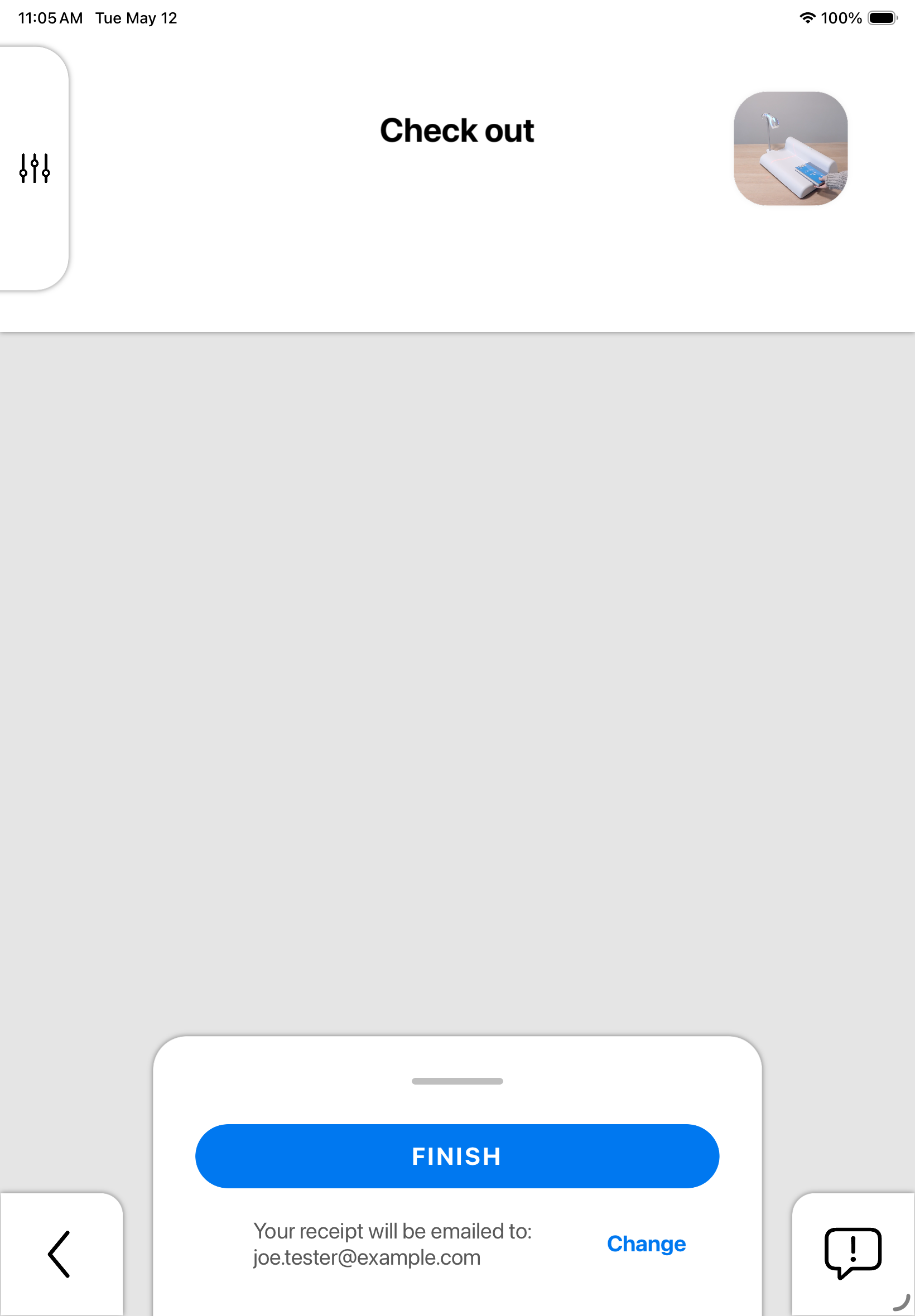
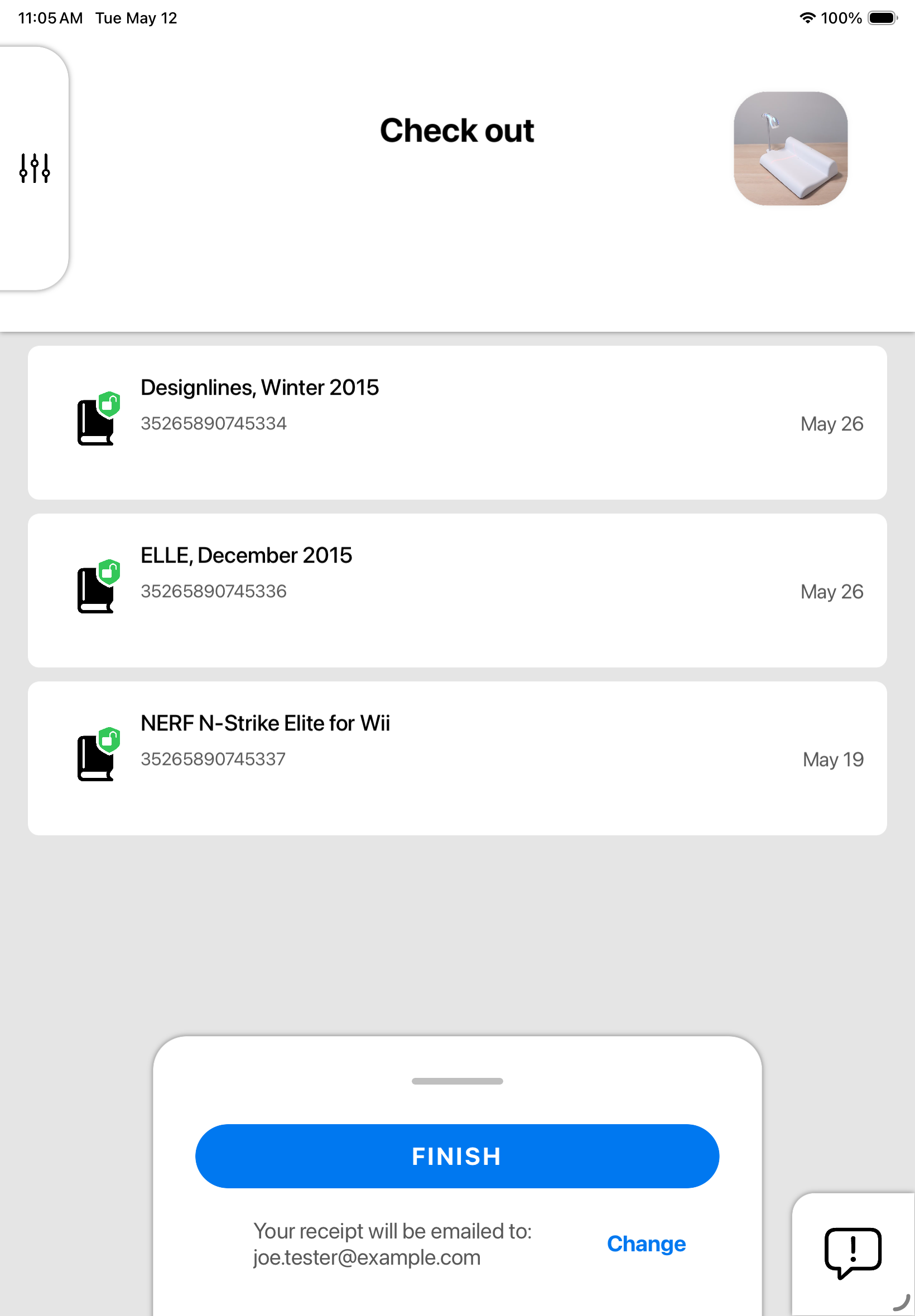
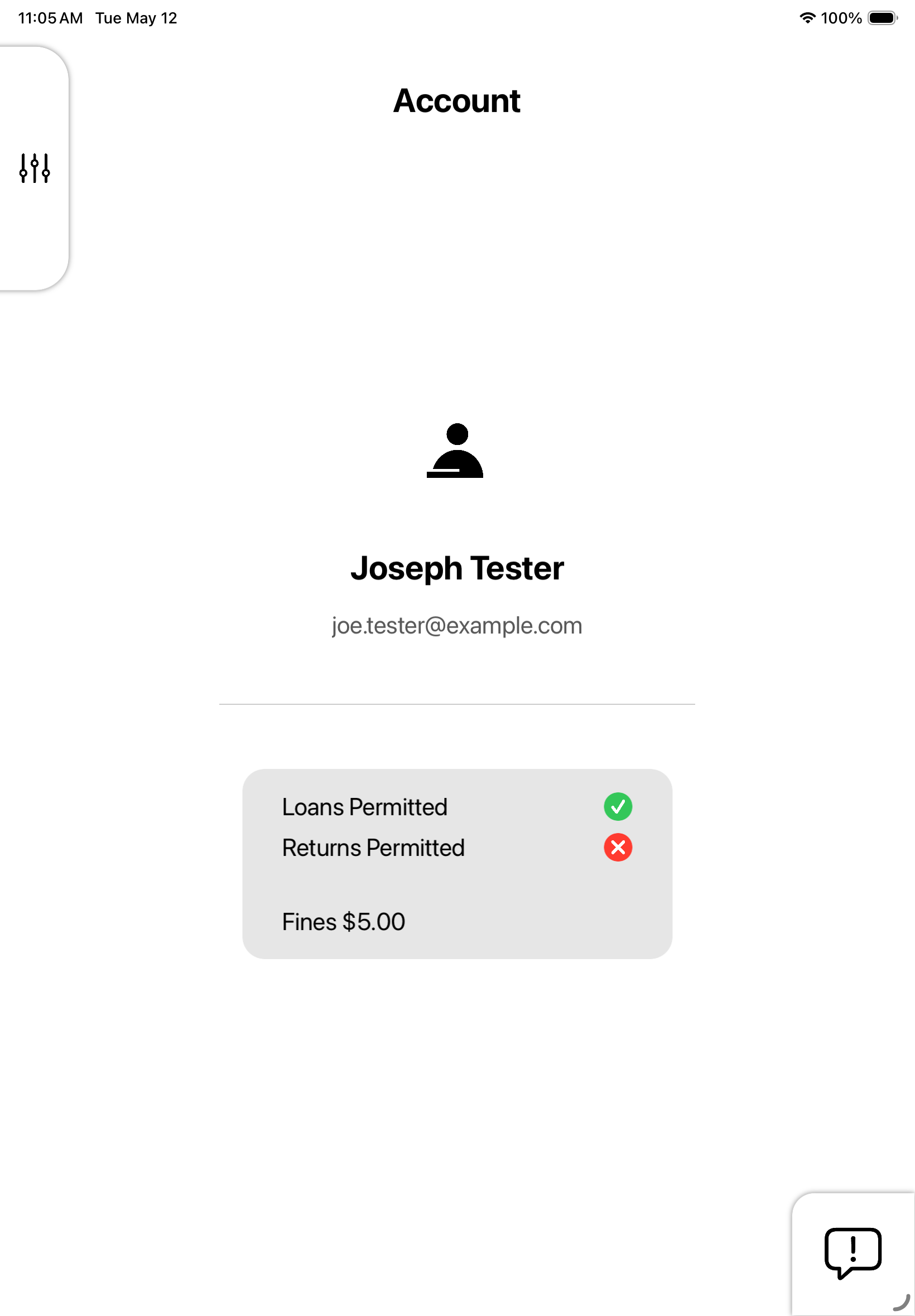
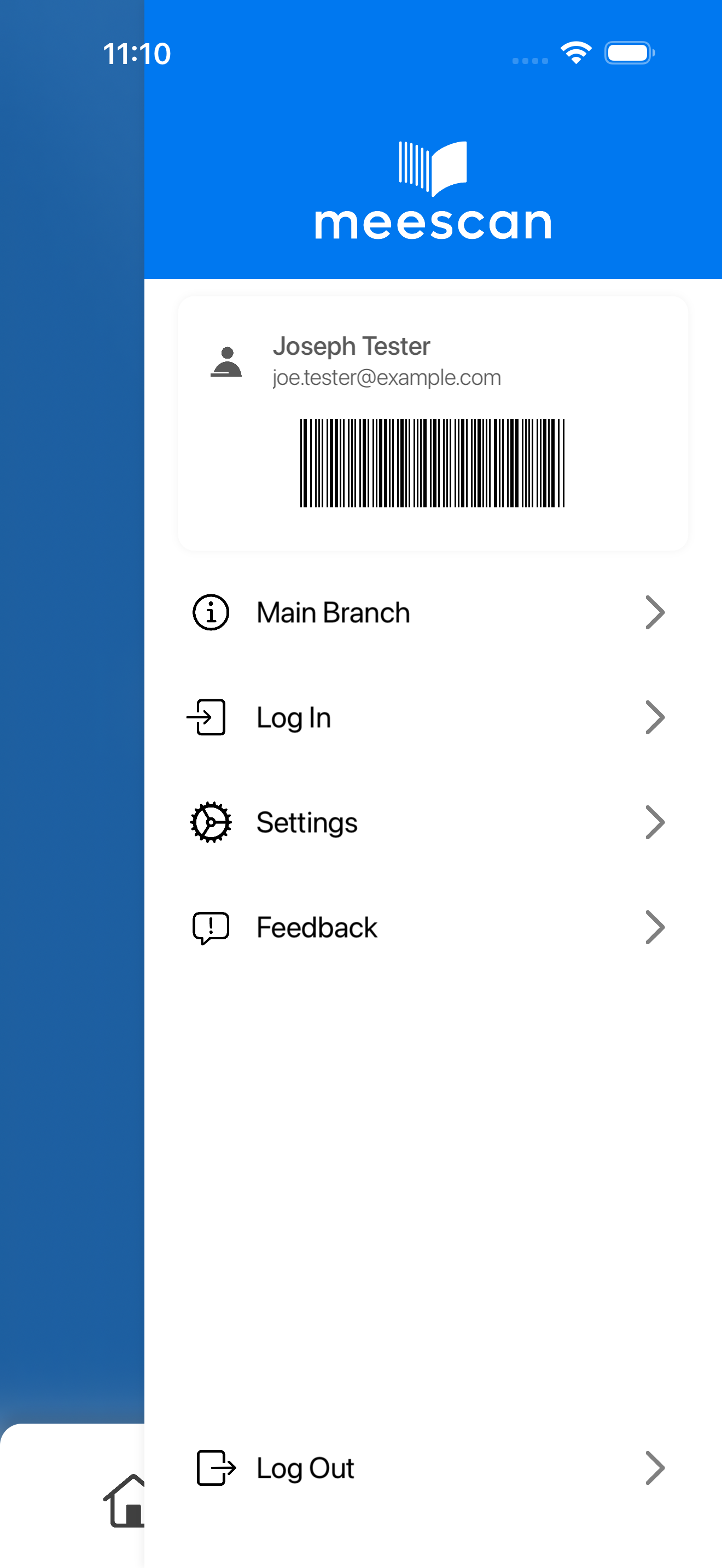
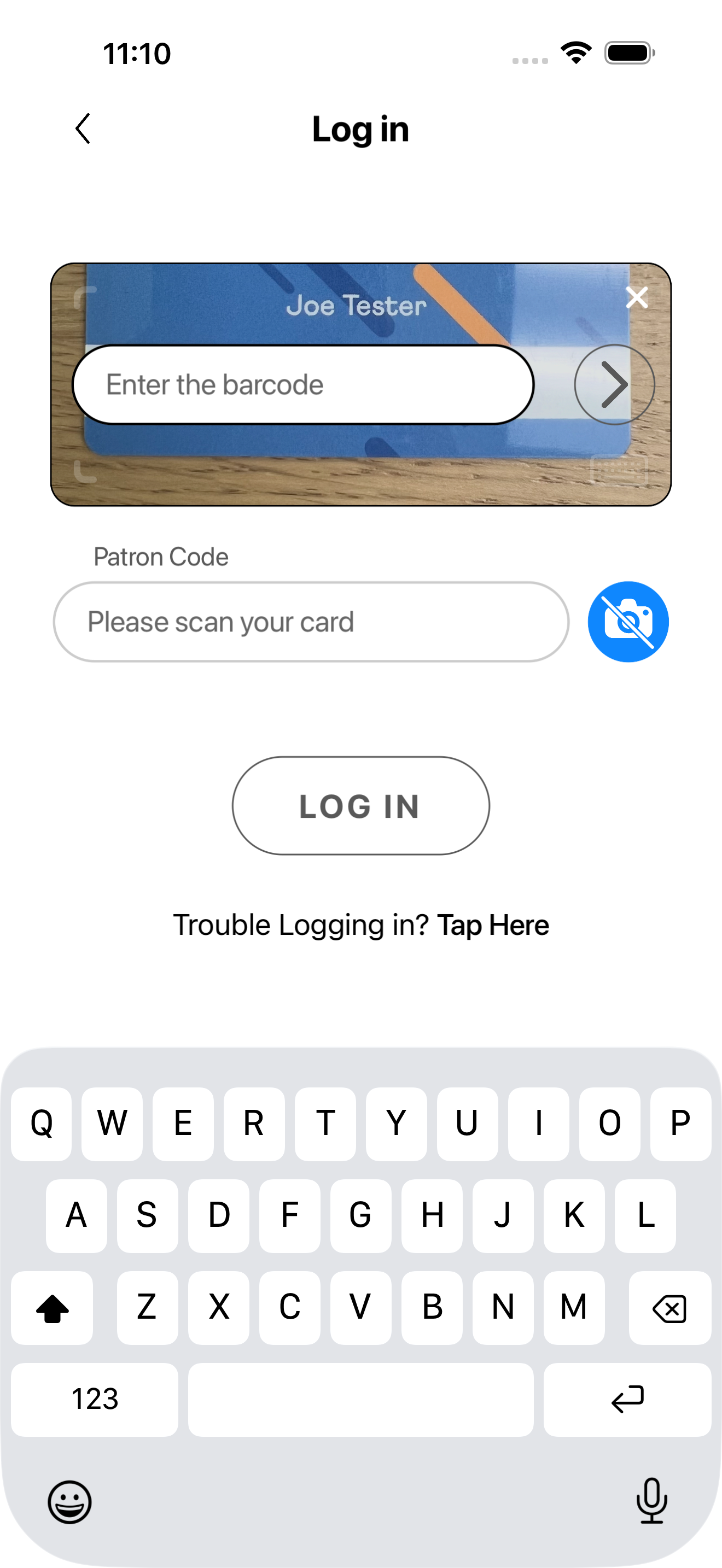
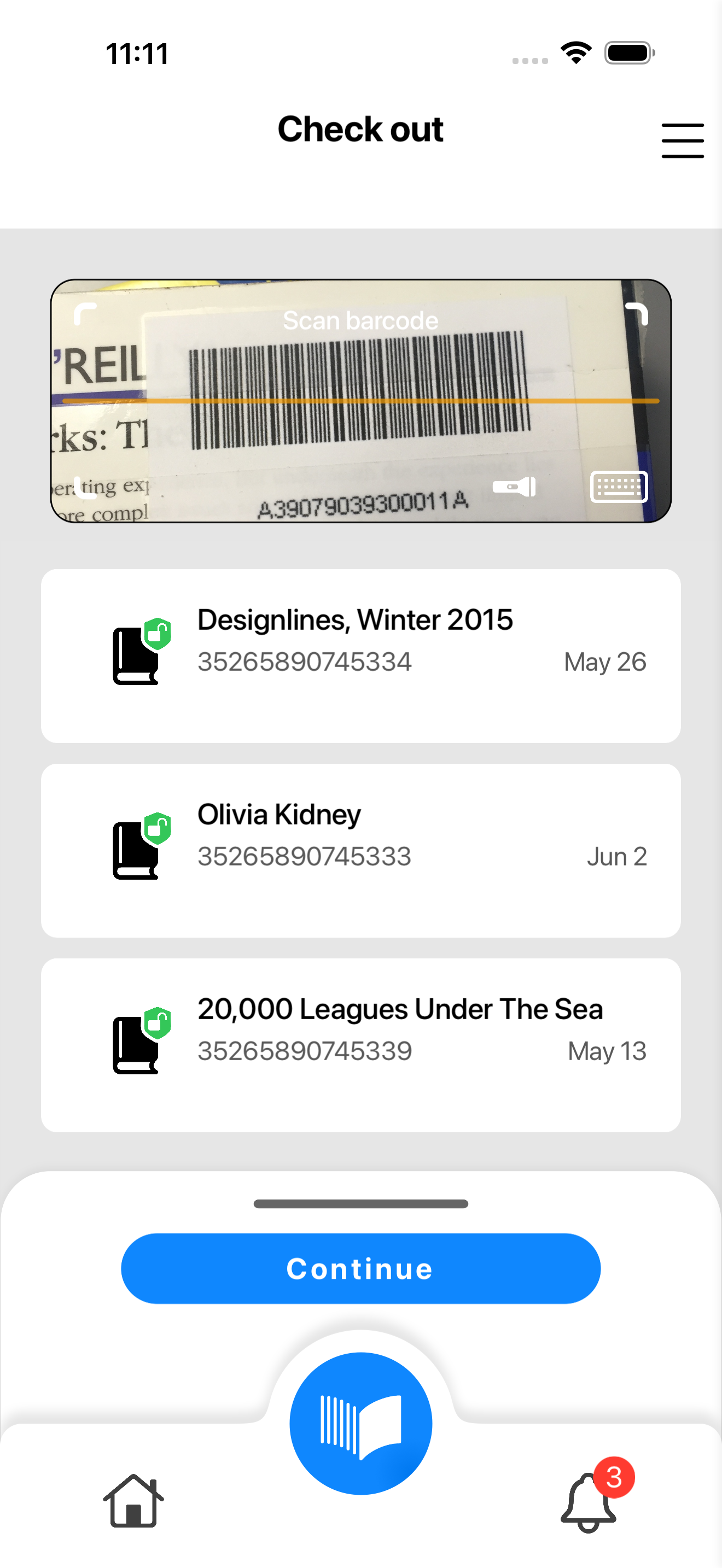
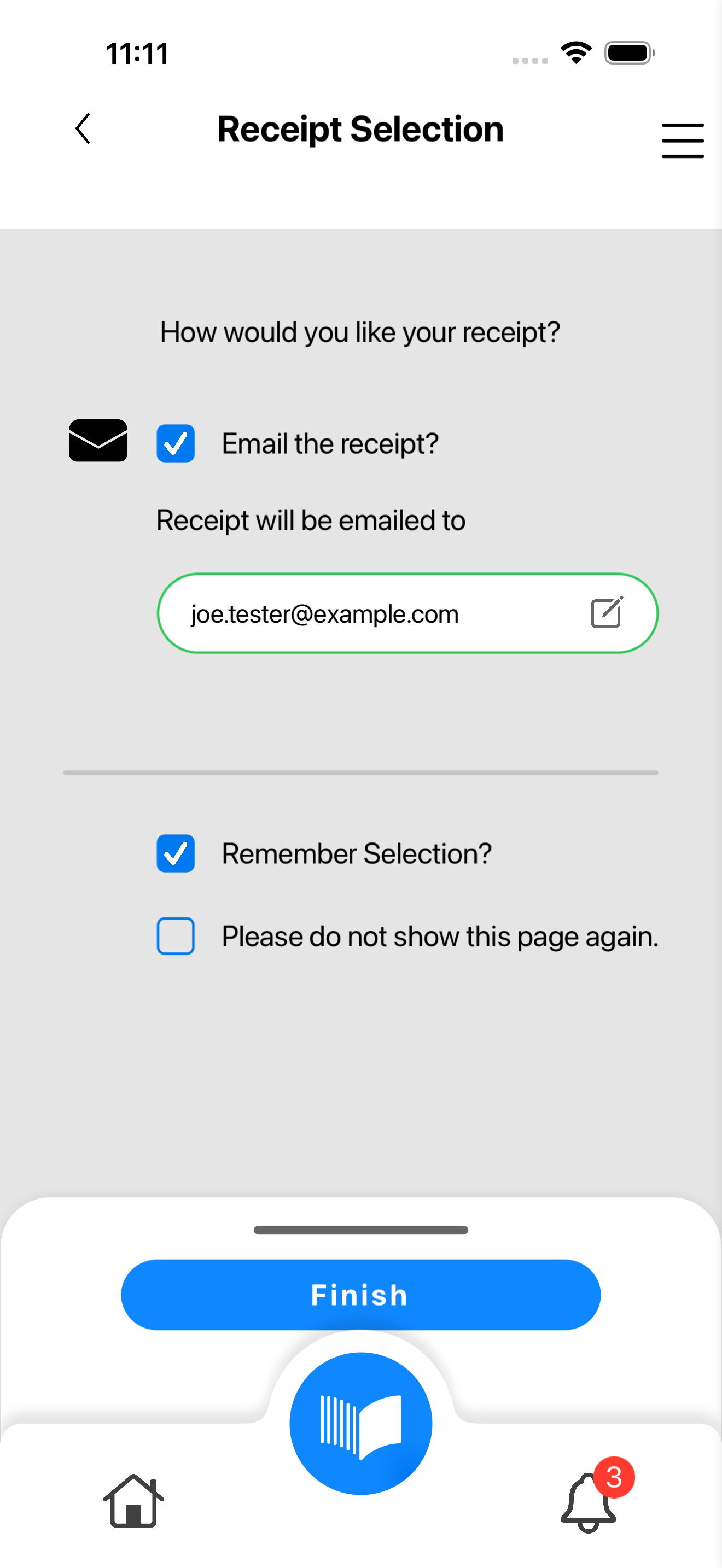
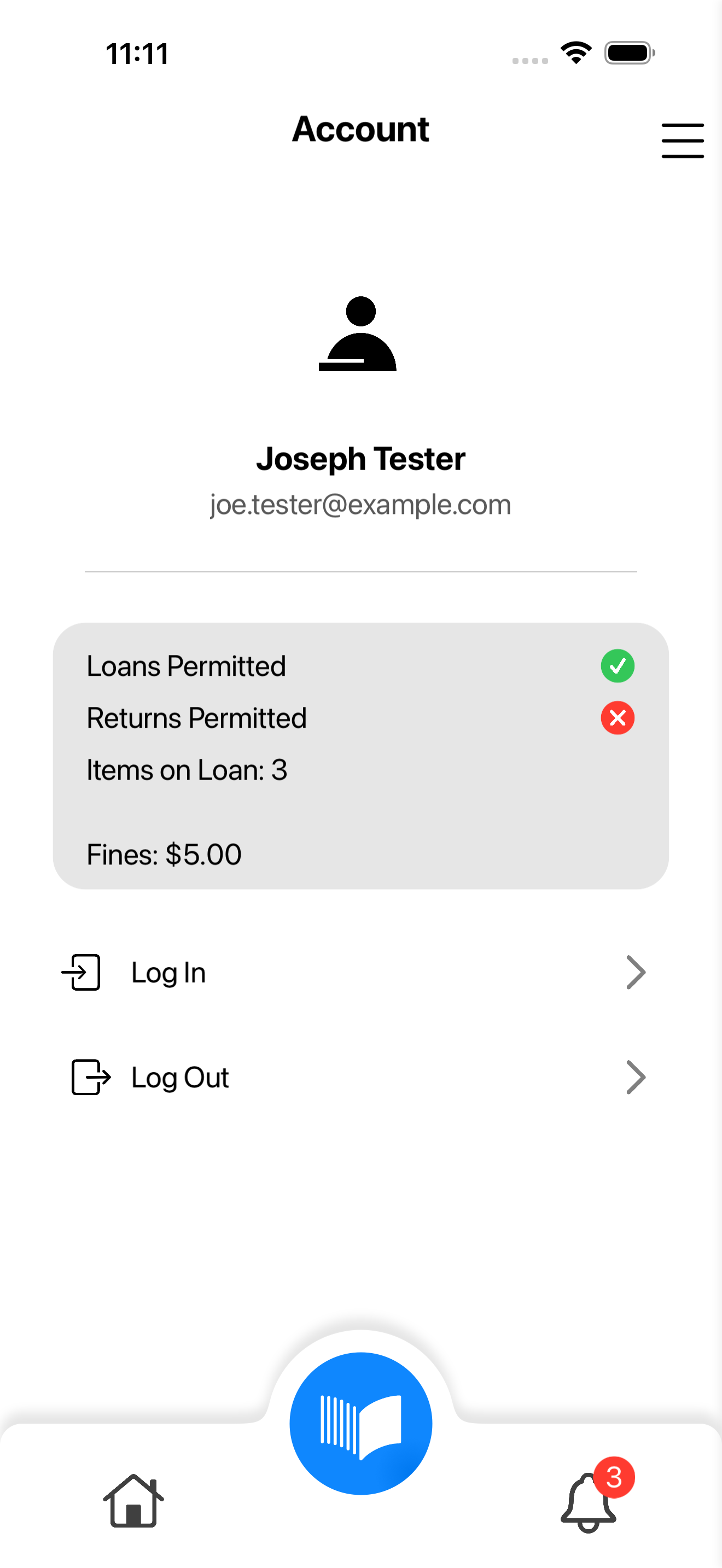
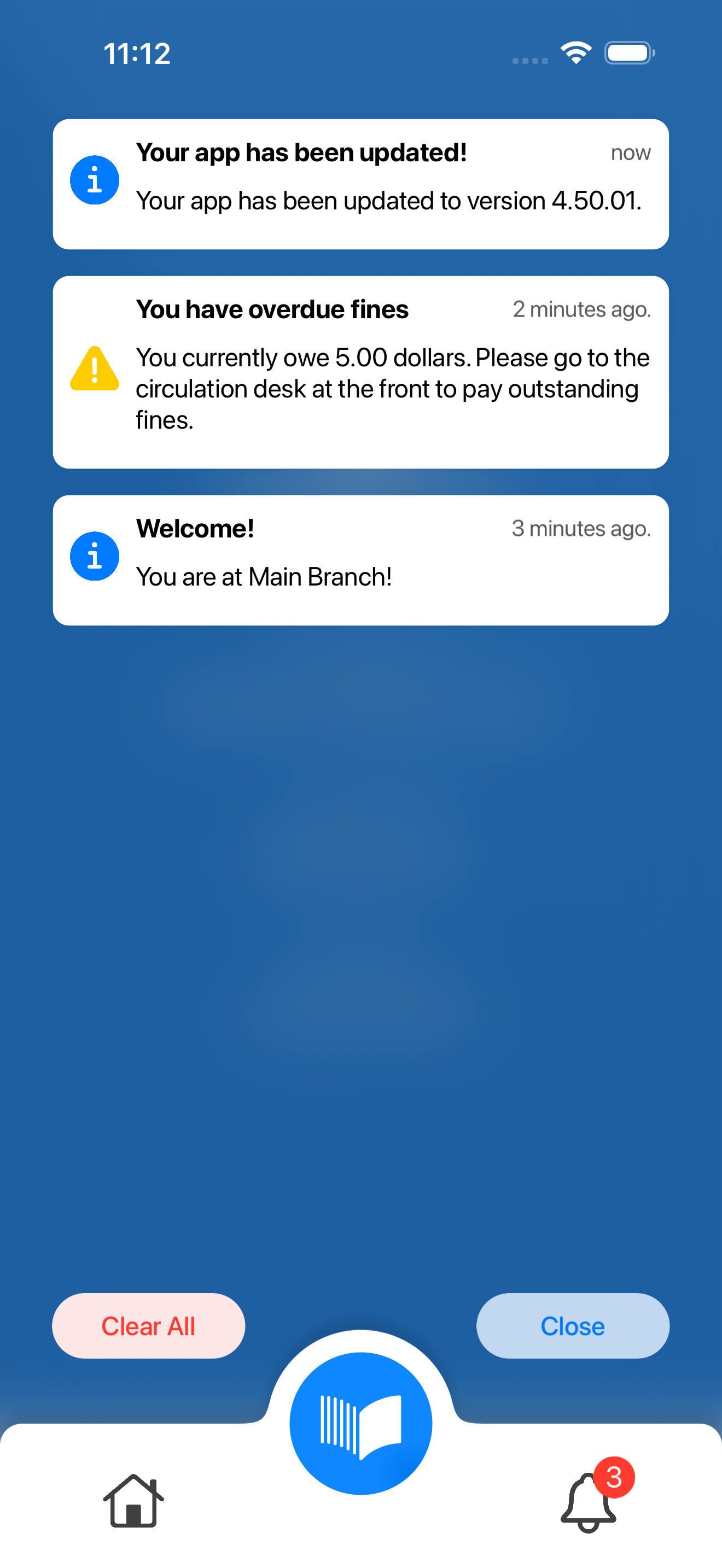
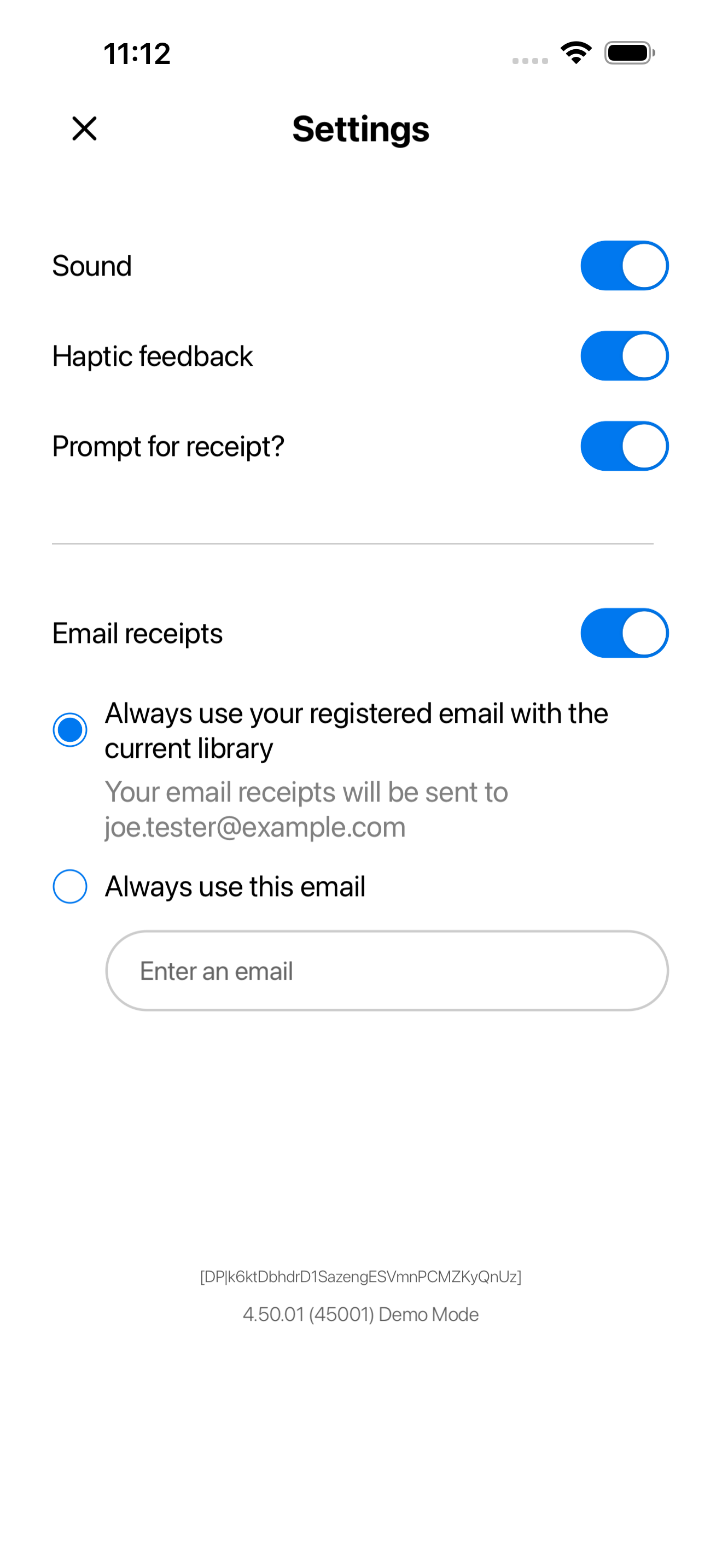
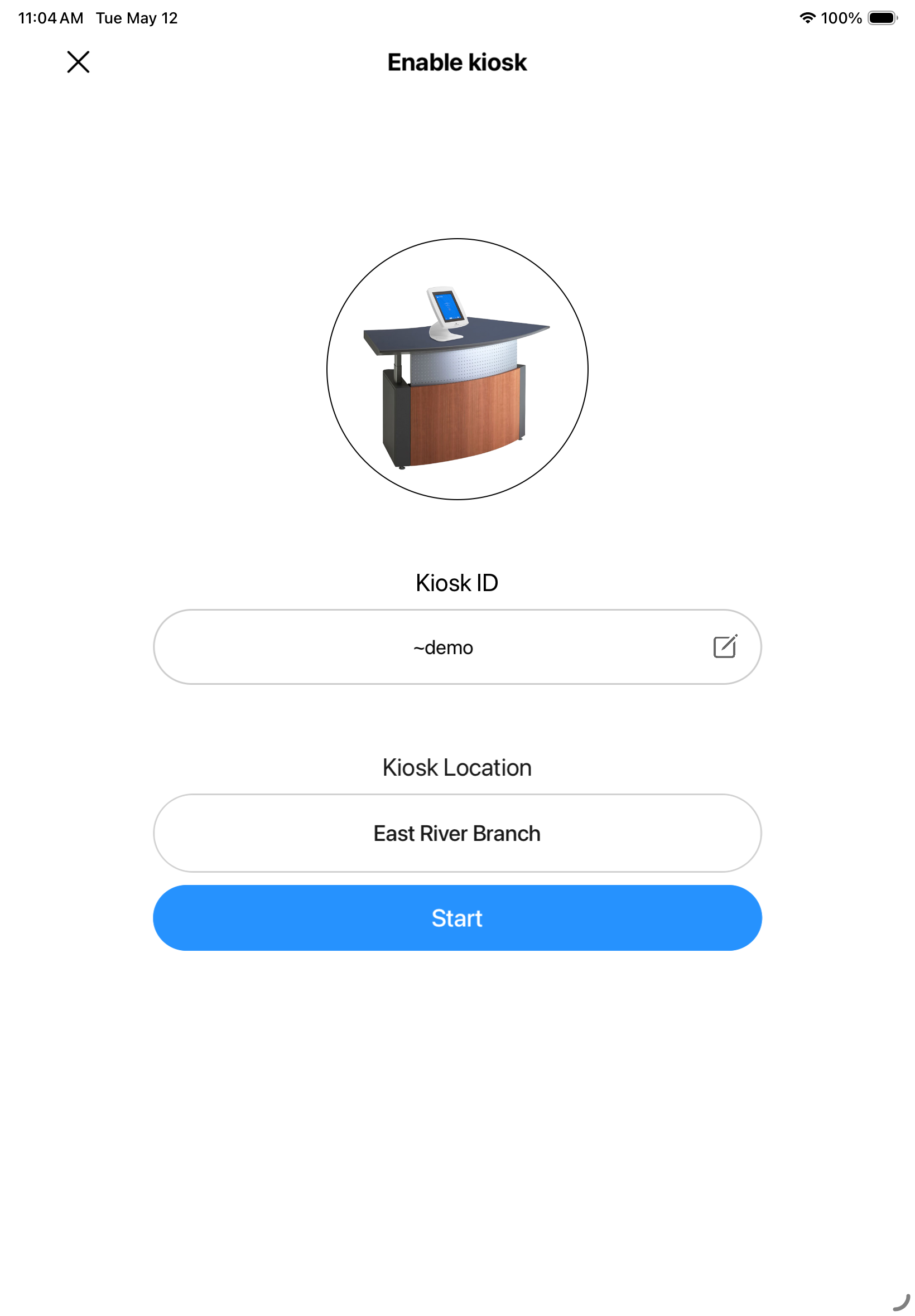
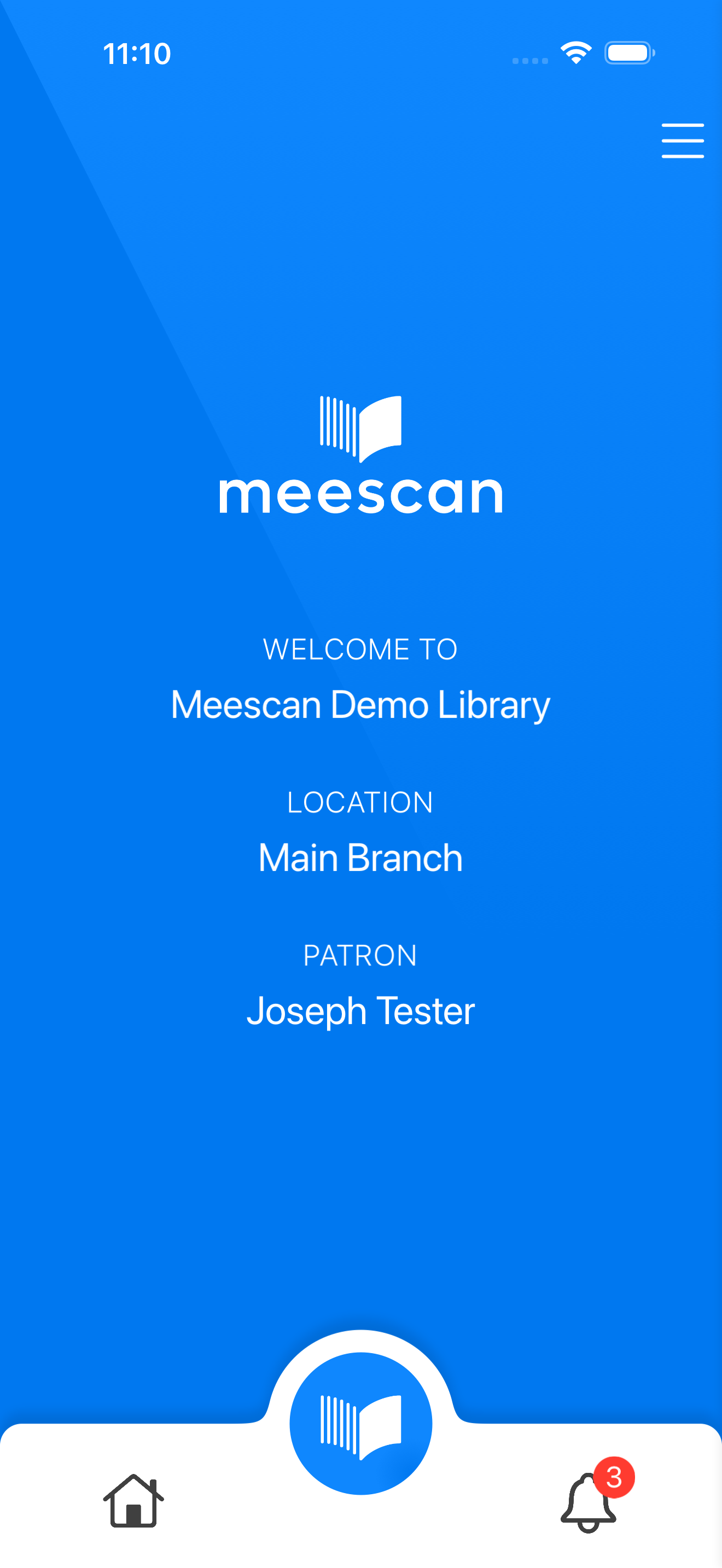
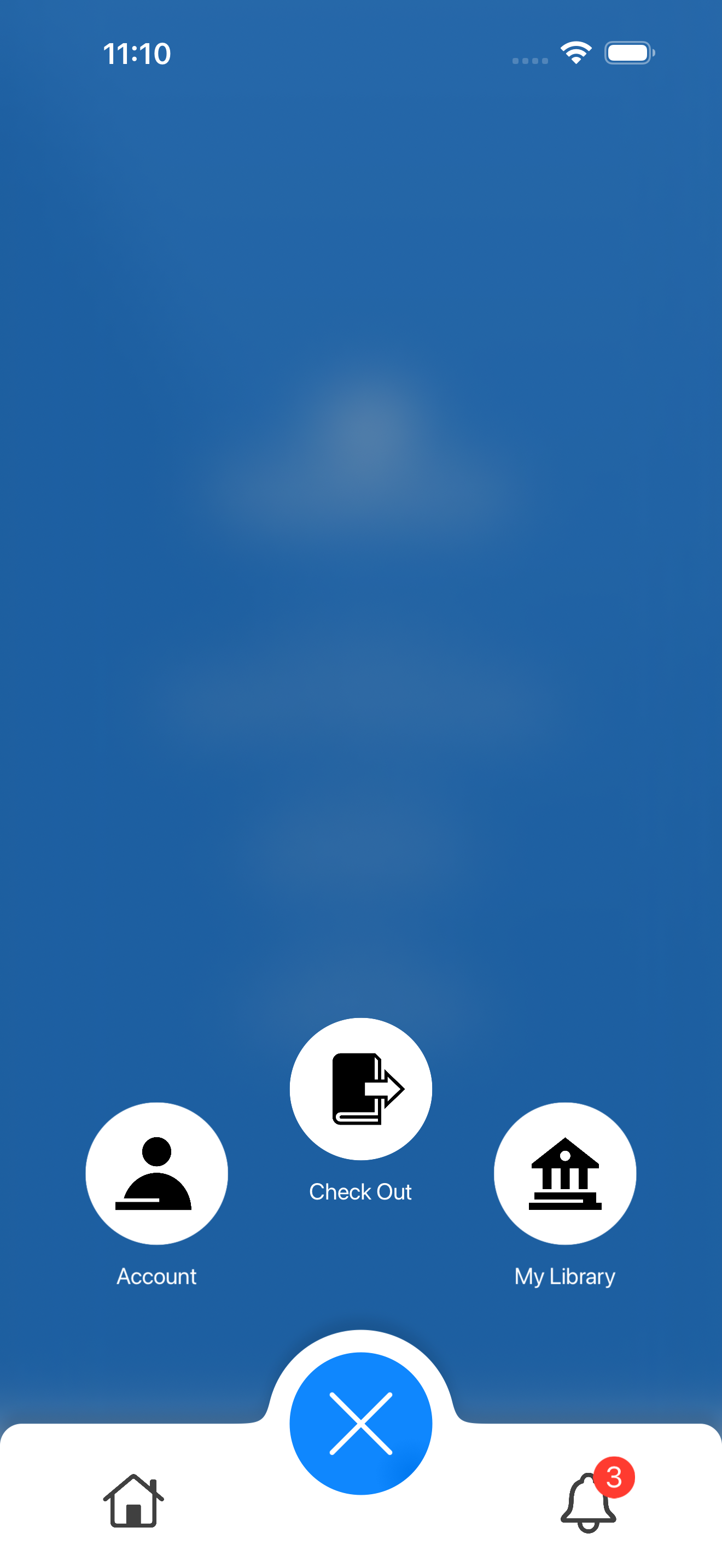
Insert the HTML block like the ones below to get a screenshot.

- If you need other screenshots, copy the code of the snippet into a new snippet and change the value of the variable on the first line.

- To set a specific height to the screenshot, Select the HTML control and enter the following style to "Custom CCC" under "Advanced":

selector .screenshot-image {
    height: 300px;         /* Enter the desired height here */
}

Text here

Lorem ipsum dolor sit amet, consectetur adipiscing elit. Ut elit tellus, luctus nec ullamcorper mattis, pulvinar dapibus leo. Lorem ipsum dolor sit amet, consectetur adipiscing elit. Ut elit tellus, luctus nec ullamcorper mattis, pulvinar dapibus leo. Lorem ipsum dolor sit amet, consectetur adipiscing elit. Ut elit tellus, luctus nec ullamcorper mattis, pulvinar dapibus leo.

To show/hide sections depending on branding:

Step 1: Include the HTML below this text on the page (anywhere, preferably by the top). This will inject a script to the page that will hide sections with specific CSS class.

Step 2: Select a section that you want to show conditionally and in advanced tab, set the CSS class to "branded-only" or "unbranded-only". Two sections below are set-up like that.

This is a section for branded customers.

This is a section for non-branded customers

QR Code

iOS
Android

URL: https://testflight.apple.com/join/asQCSVtR

QR Code

URL: https://play.google.com/apps/testing/ca.bintec.meescan
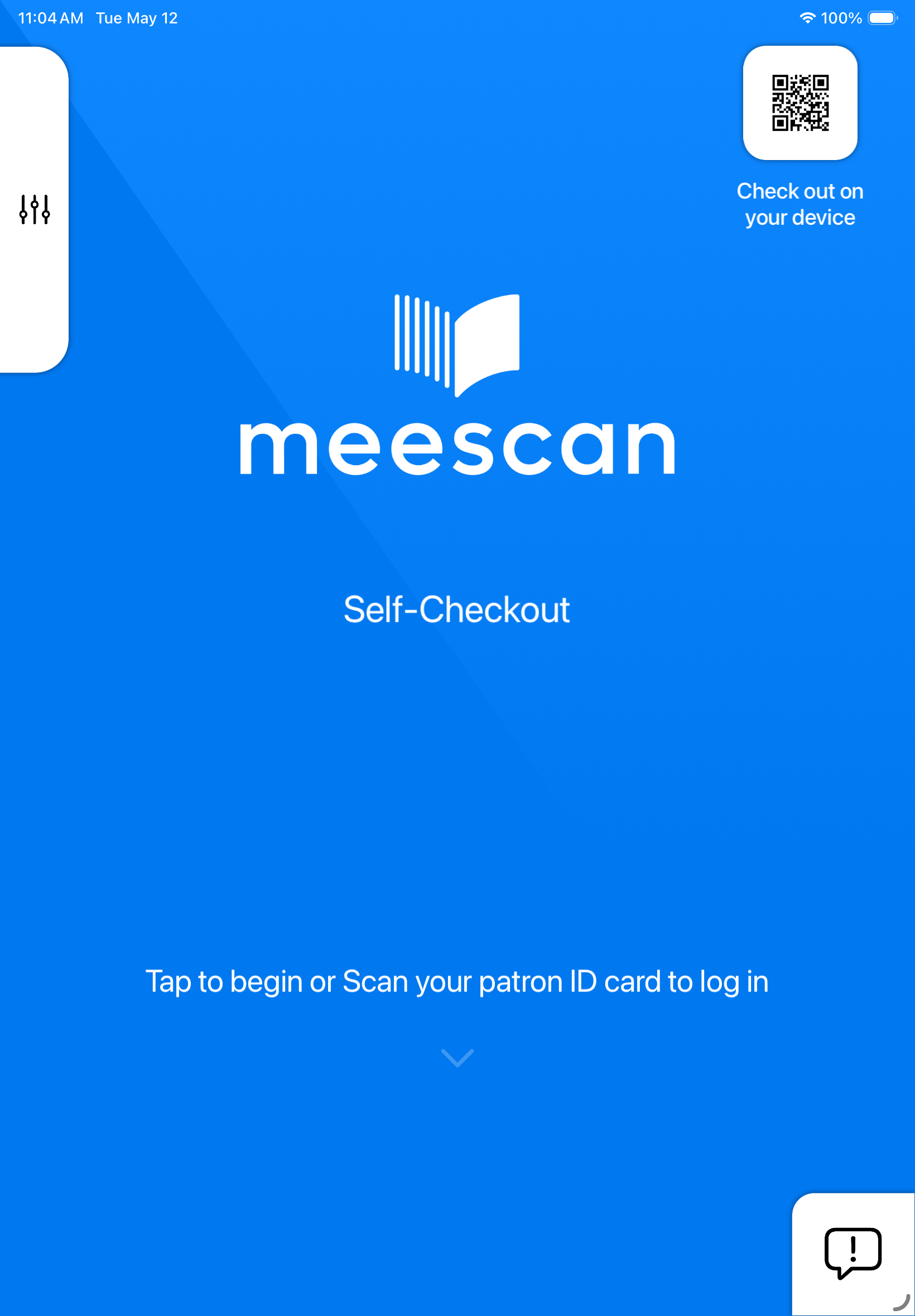
QR Code

App store QR Code

Carousel

branded-app-kiosk-screenshot-carousel
branded-app-phone-screenshot-carousel

Screenshot 1
Screenshot 2
Screenshot 3
Screenshot 4
Screenshot 5
Screenshot 6
Screenshot 7
Screenshot 8
Screenshot 9

Screenshot 1
Screenshot 2
Screenshot 3
Screenshot 4
Screenshot 5
Screenshot 6
Screenshot 7
Screenshot 8
Screenshot 9