Testing page

Strings that can be used on the page

branded-app-name = UCalgary Library Self Checkout

branded-library-name = University of Calgary

branded-library-code = 12407477

branded-organization-name = University of Calgary

Screenshots

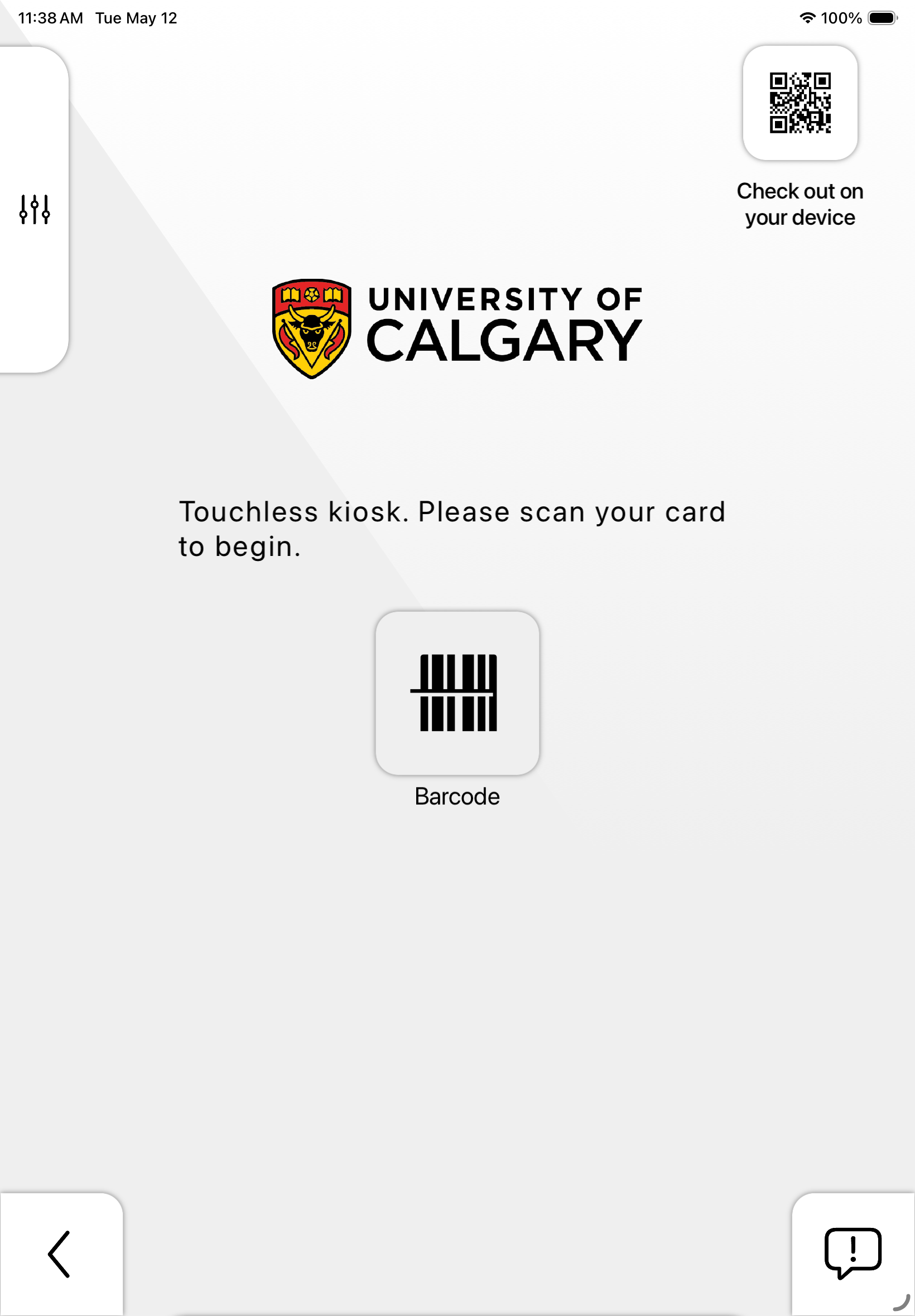
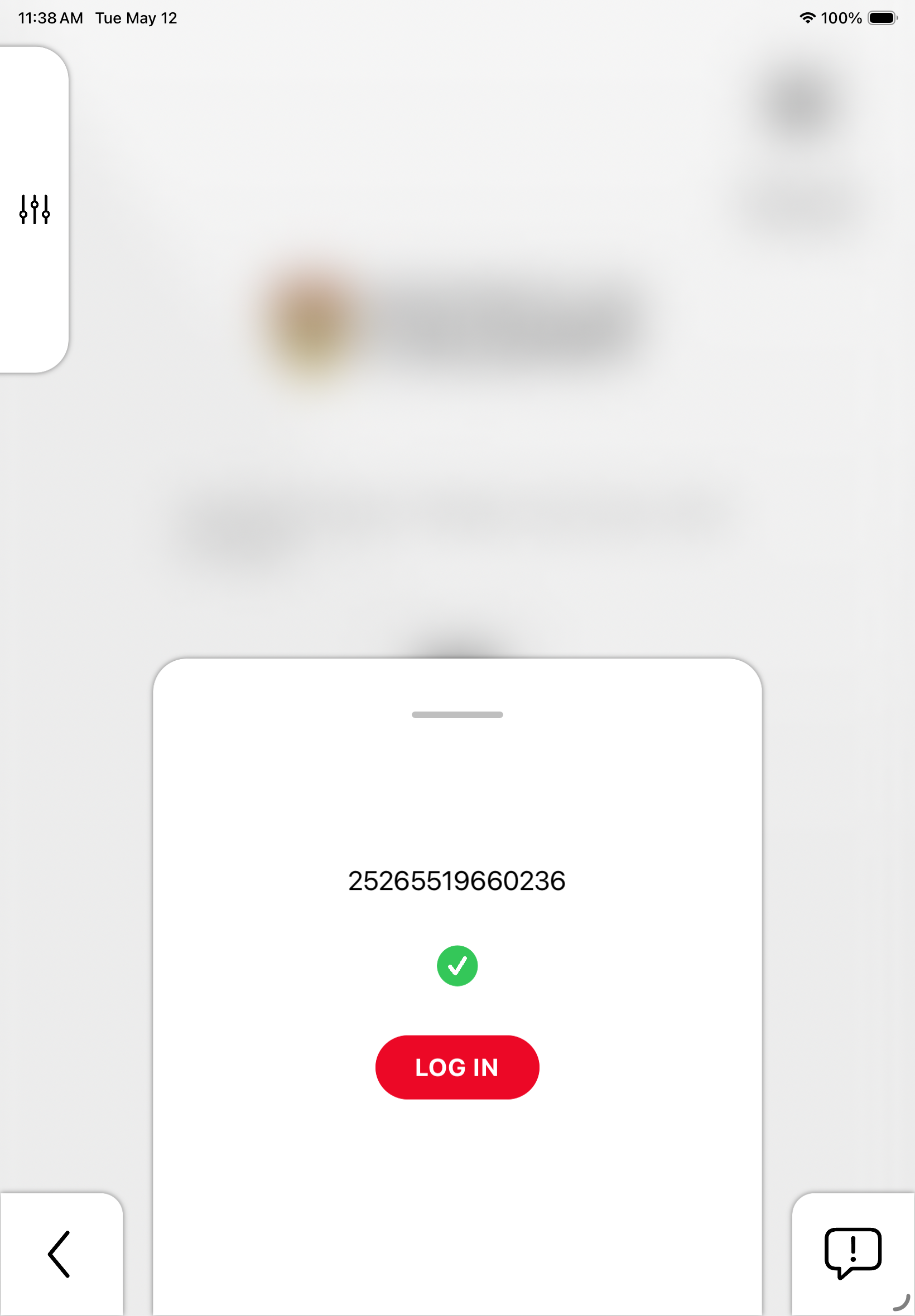
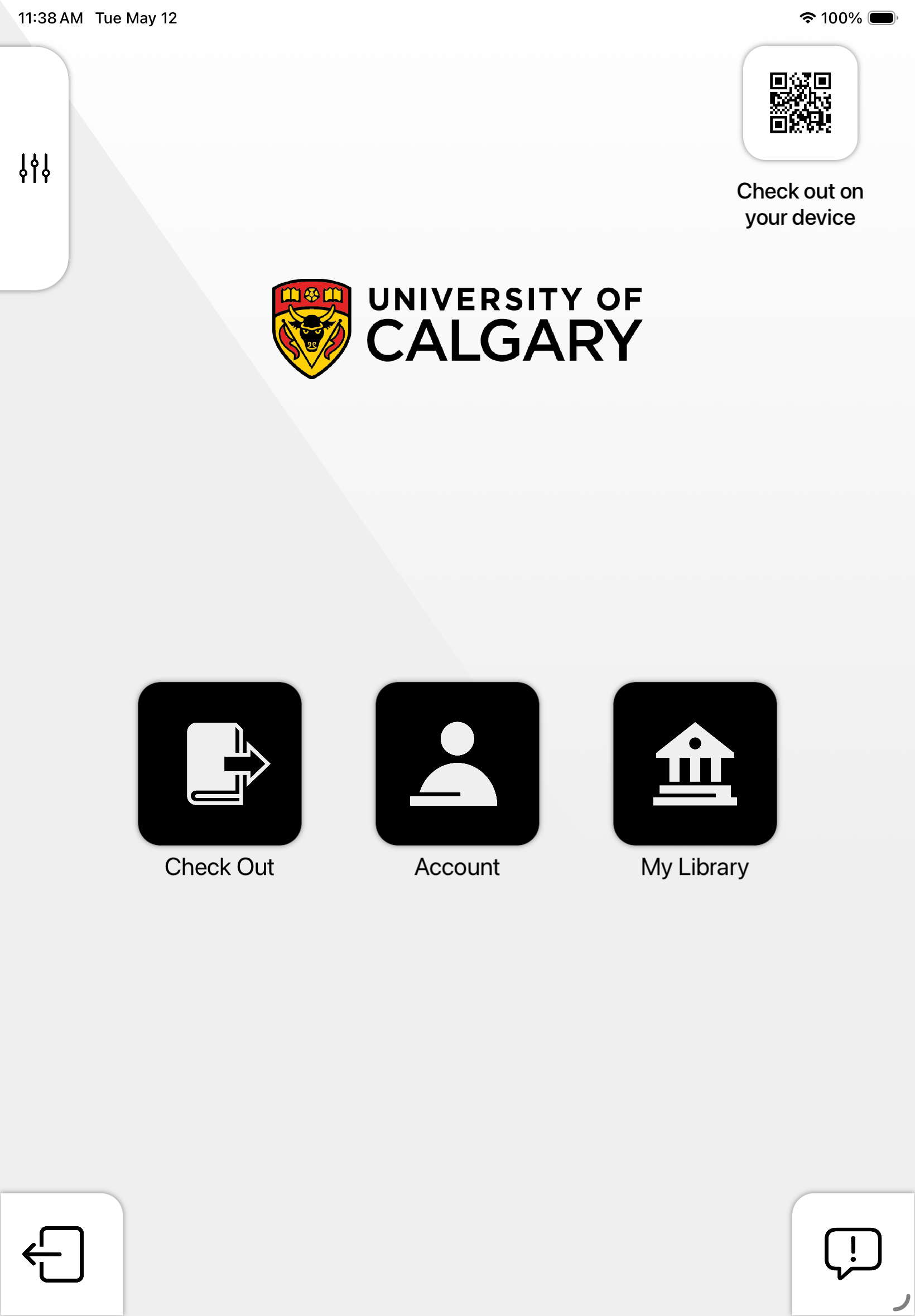
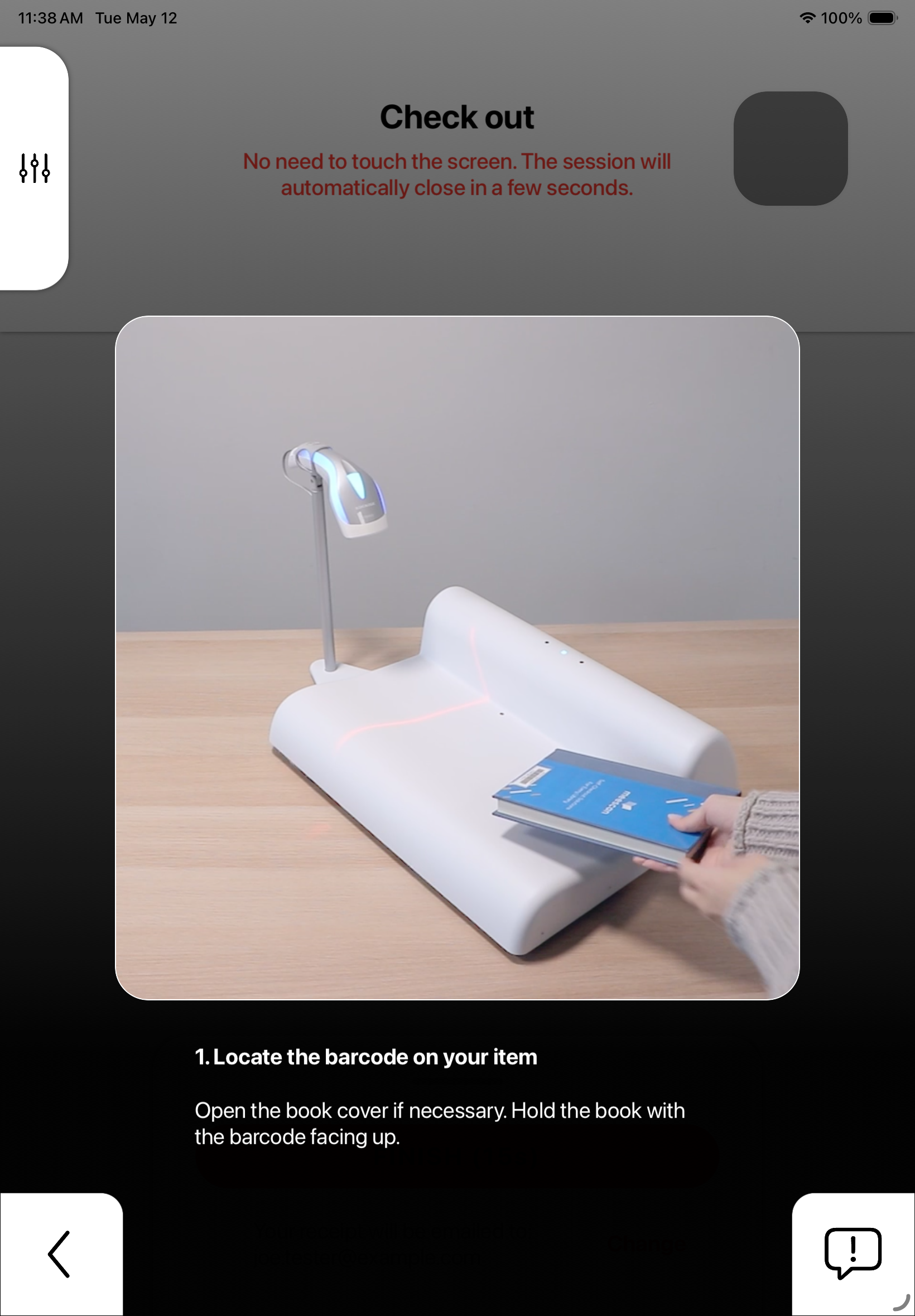
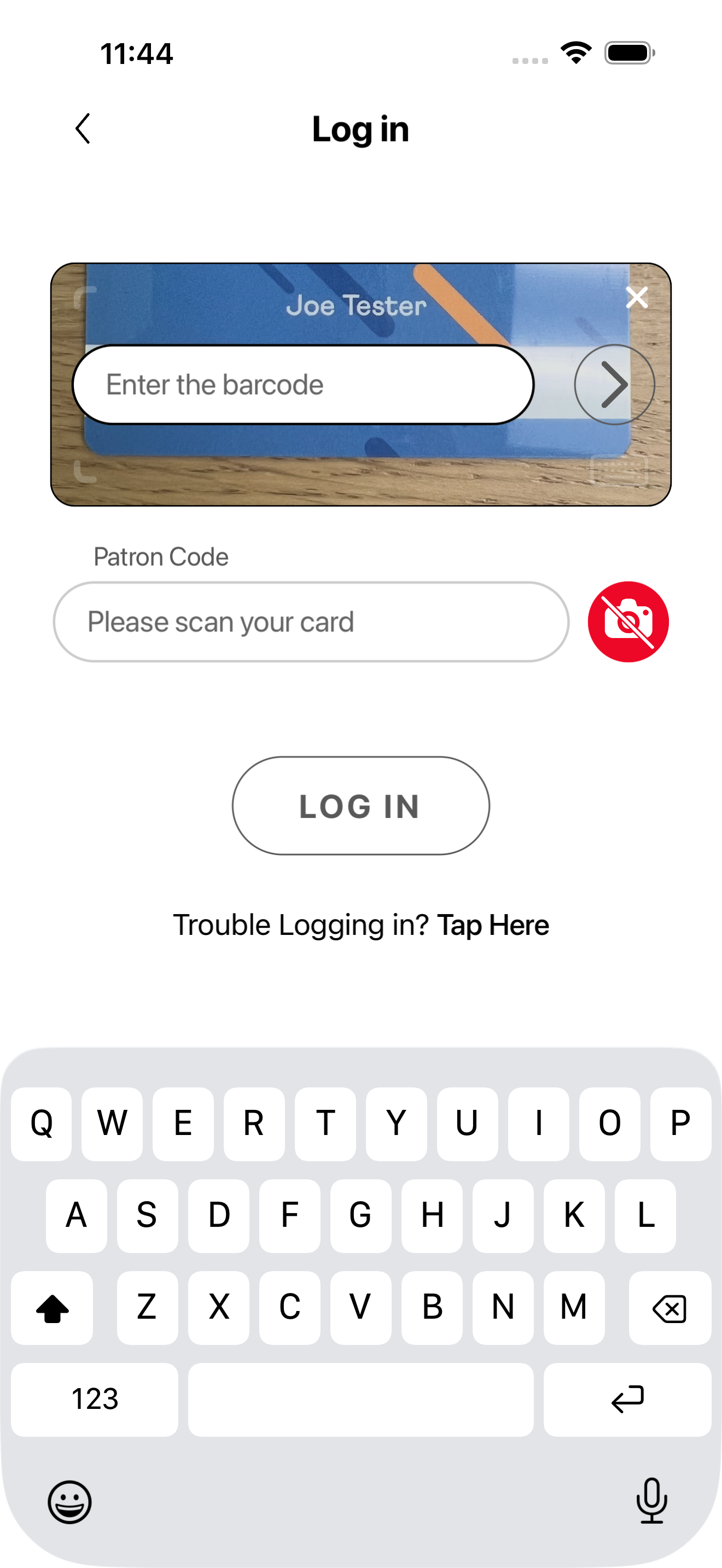
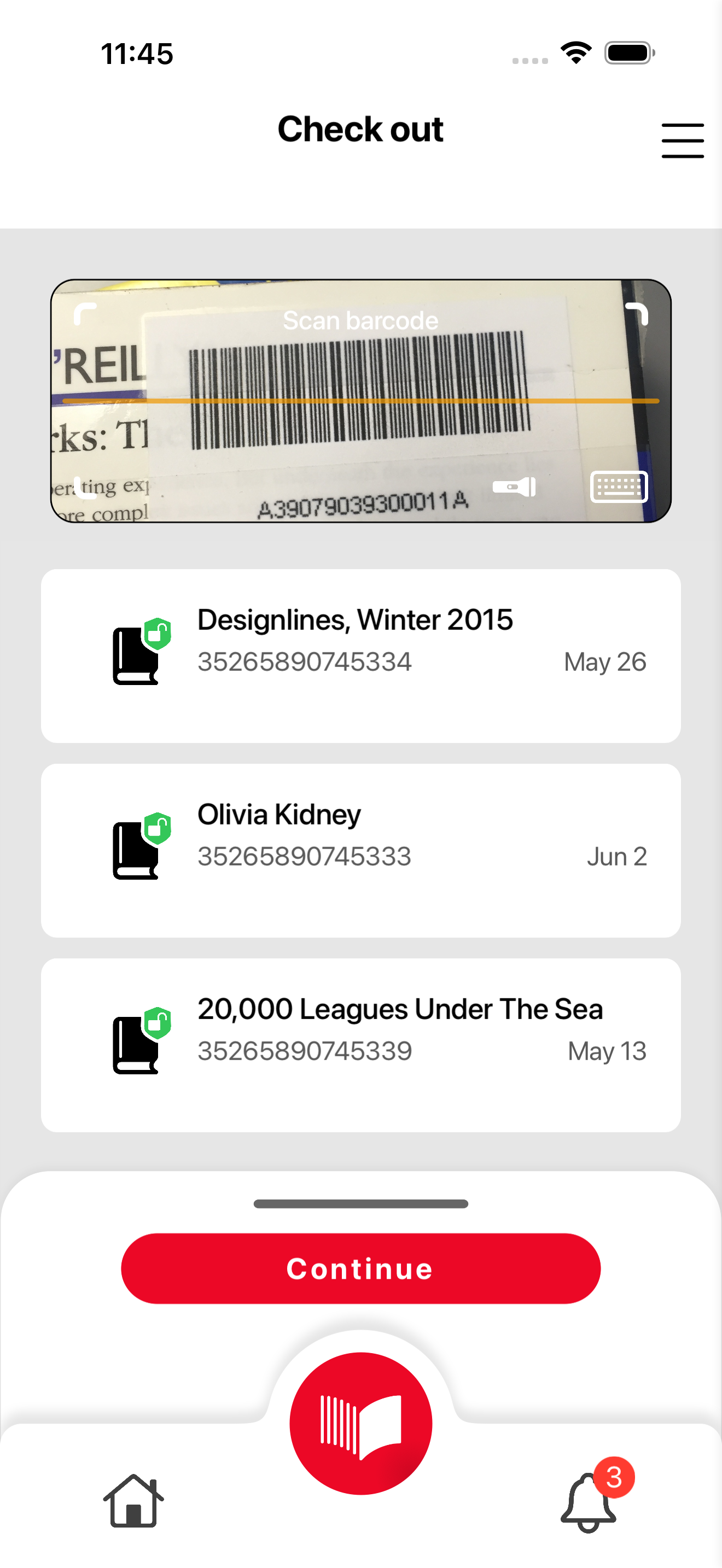
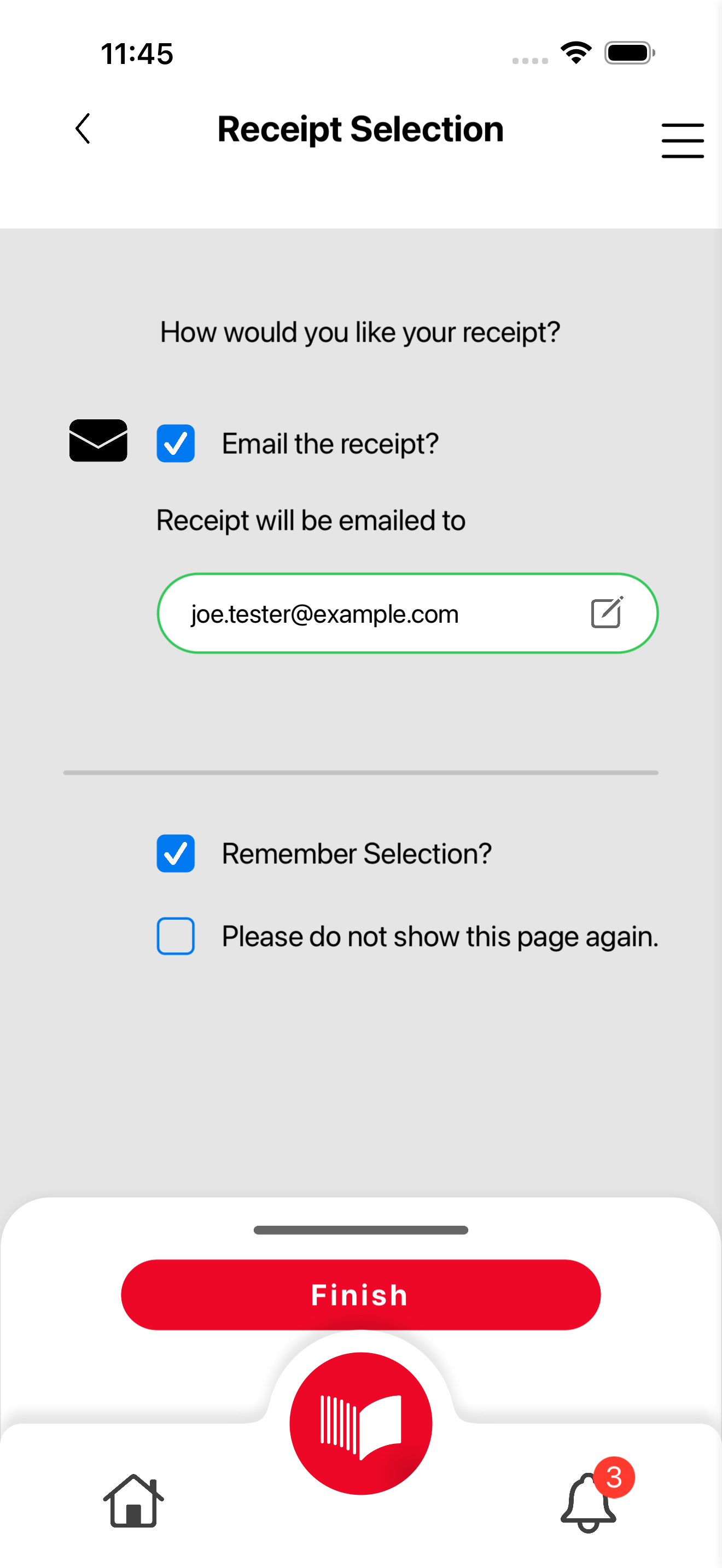
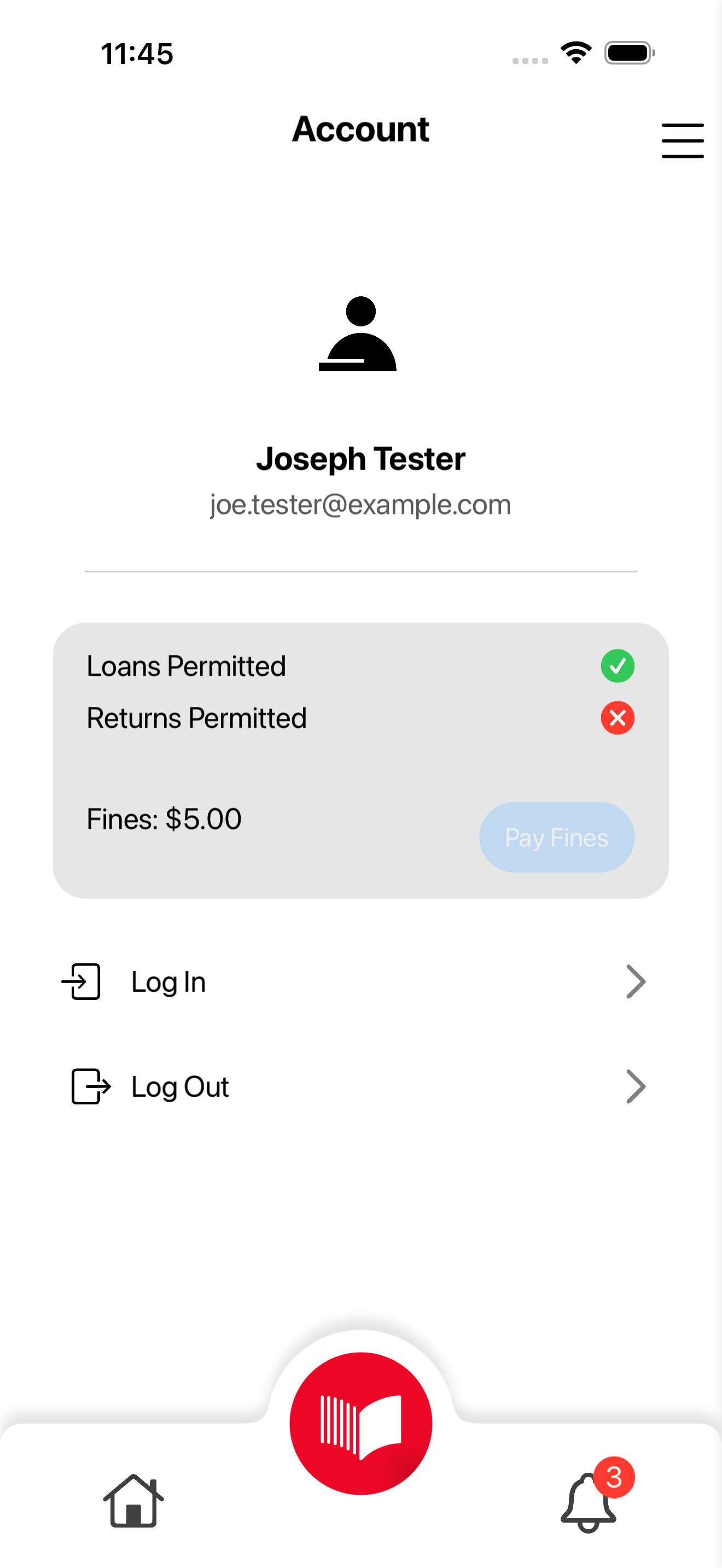
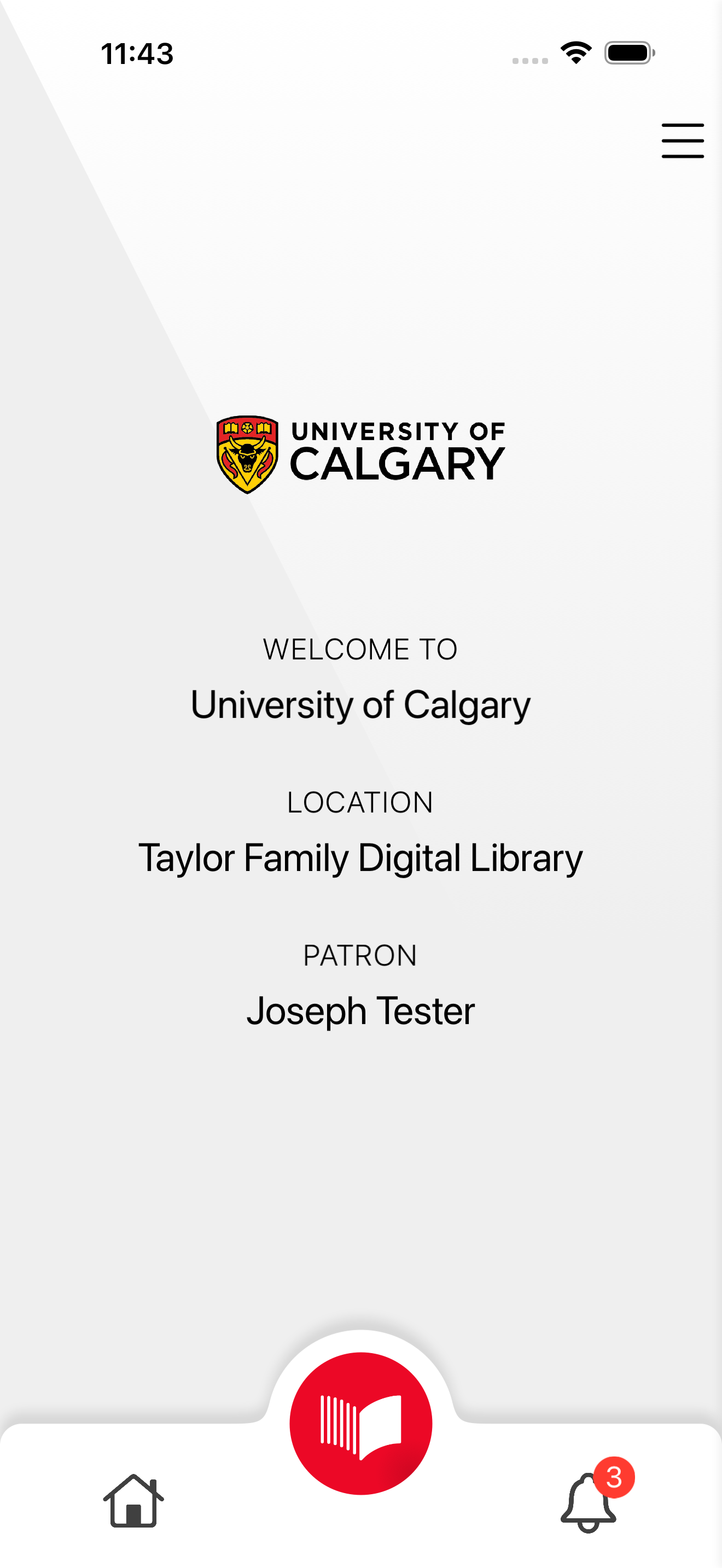
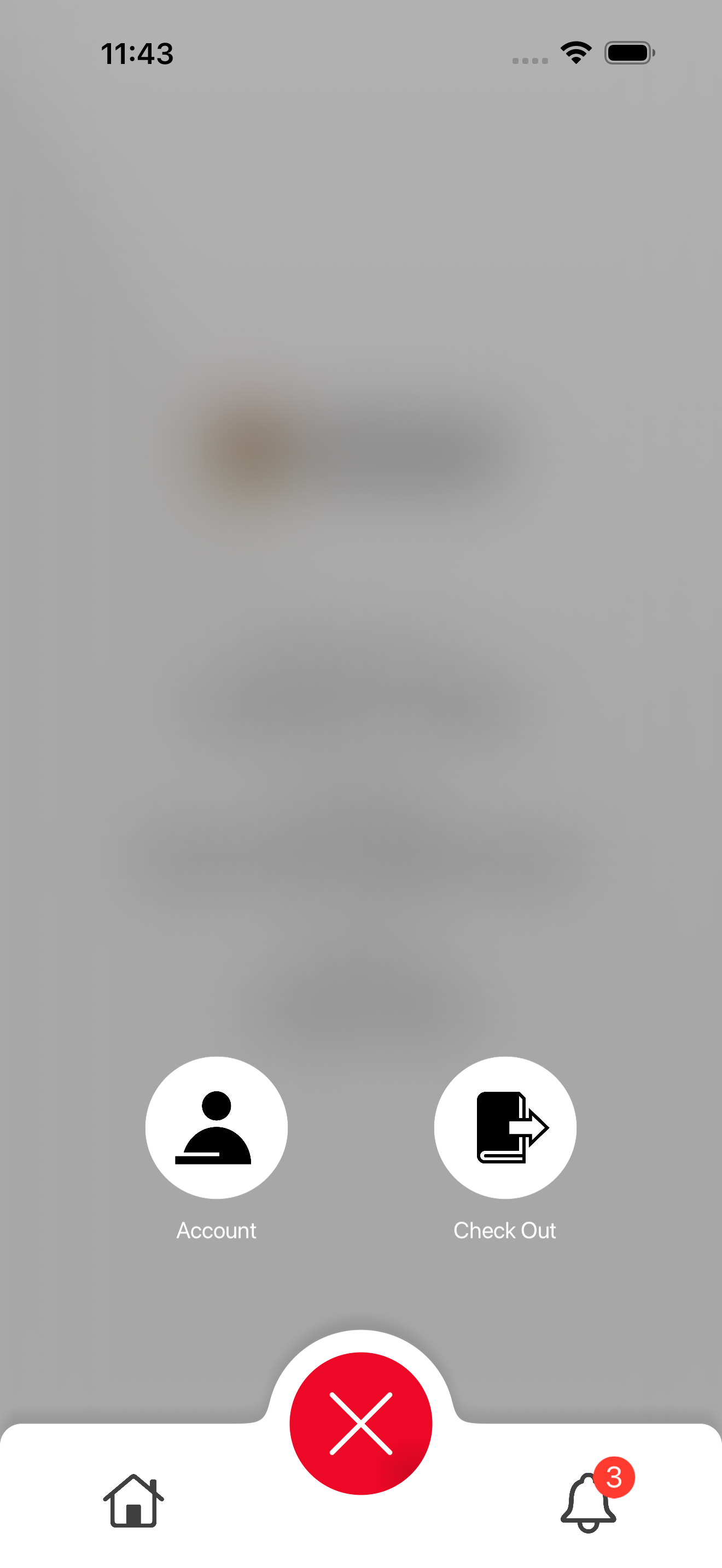
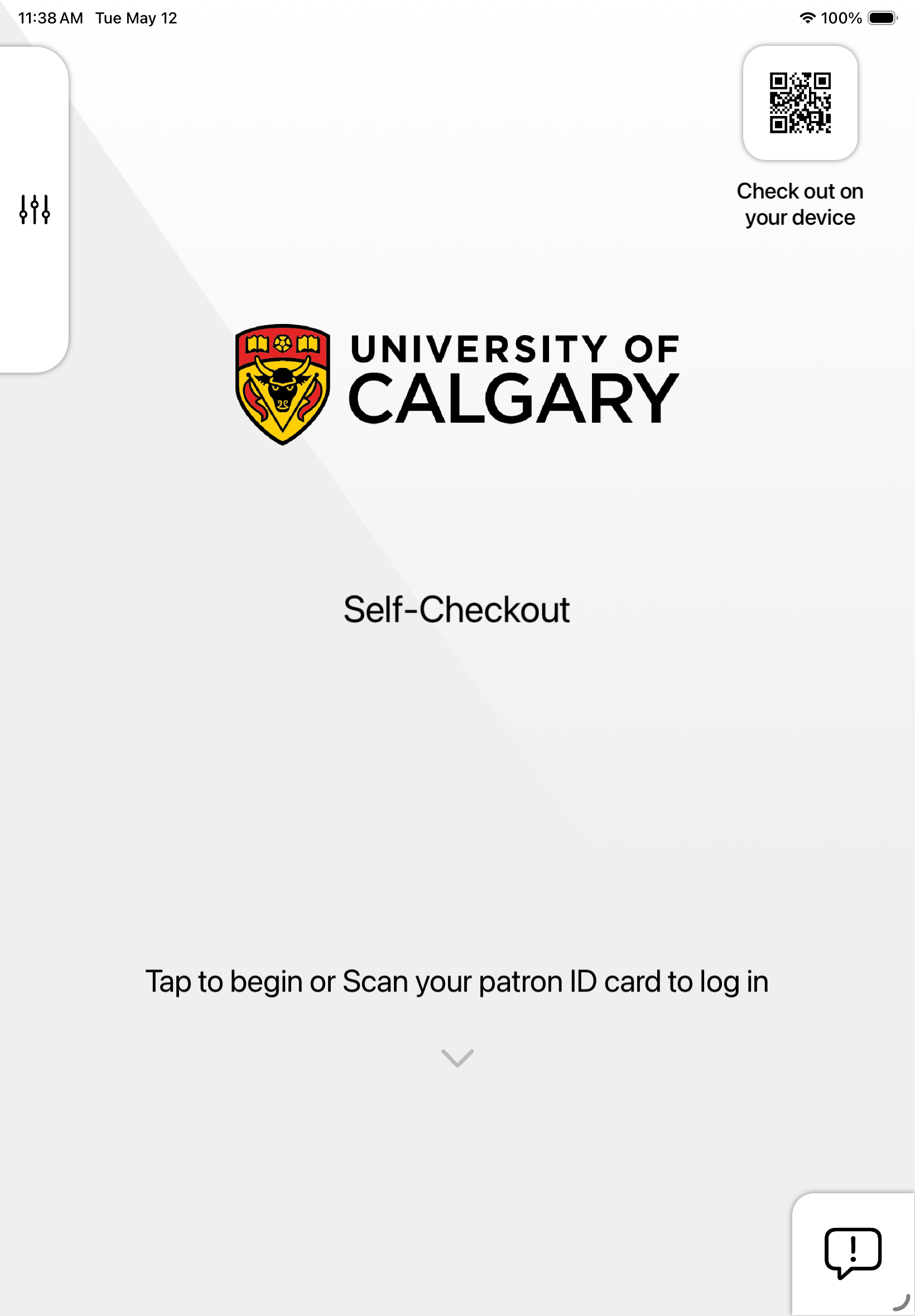
Insert the HTML block like the ones below to get a screenshot.

- If you need other screenshots, copy the code of the snippet into a new snippet and change the value of the variable on the first line.

- To set a specific height to the screenshot, Select the HTML control and enter the following style to "Custom CCC" under "Advanced":

selector .screenshot-image {
    height: 300px;         /* Enter the desired height here */
}

To show/hide sections depending on branding:

Step 1: Include the HTML below this text on the page (anywhere, preferably by the top). This will inject a script to the page that will hide sections with specific CSS class.

Step 2: Select a section that you want to show conditionally and in advanced tab, set the CSS class to "branded-only" or "unbranded-only". Two sections below are set-up like that.

This is a section for branded customers.

This is a section for non-branded customers

QR Code

iOS
Android

URL: https://testflight.apple.com/join/gJ2yUBfy

QR Code

URL: https://play.google.com/apps/testing/ca.bintec.meescan.c12407477
QR Code

Carousel

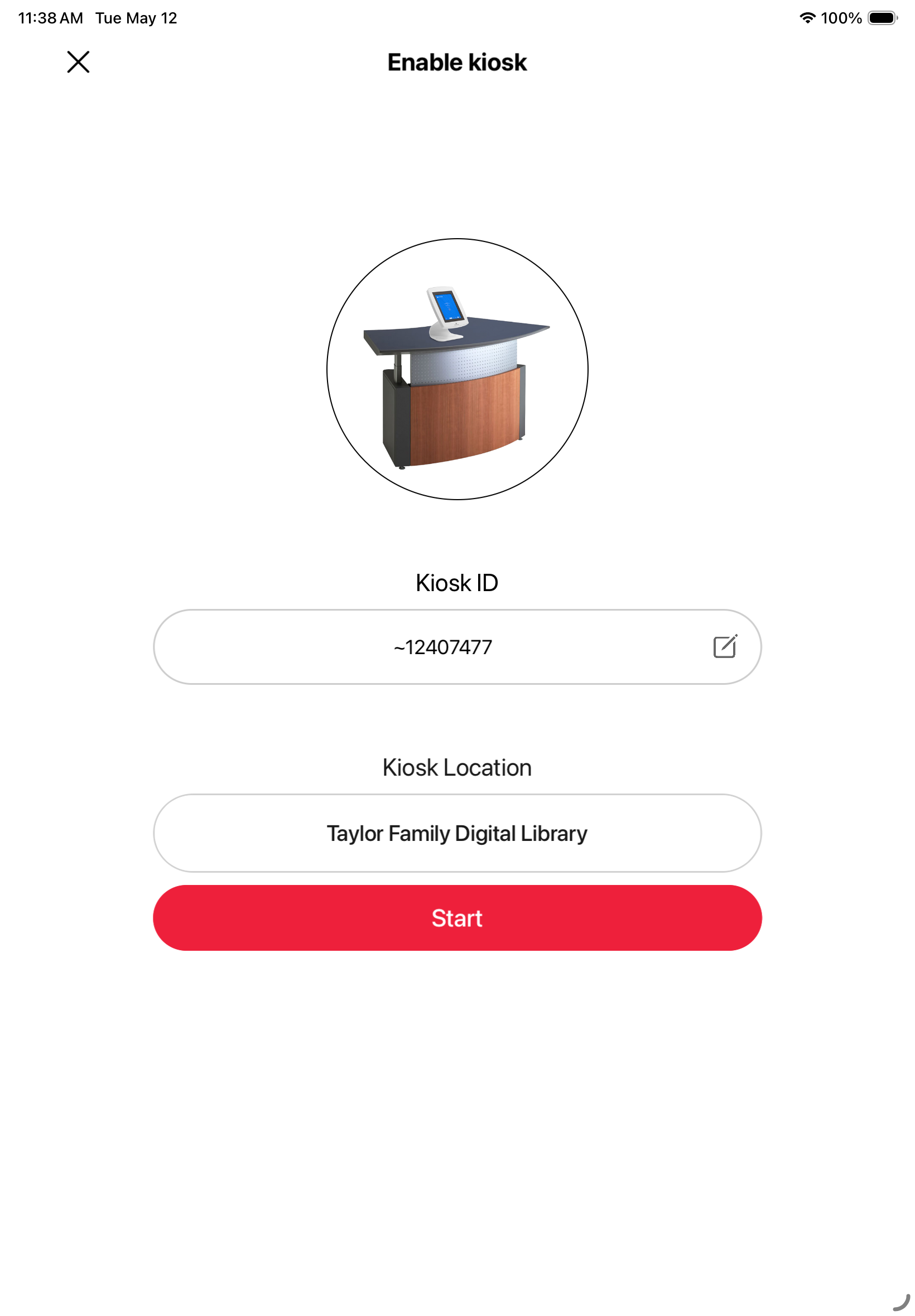
branded-app-kiosk-screenshot-carousel
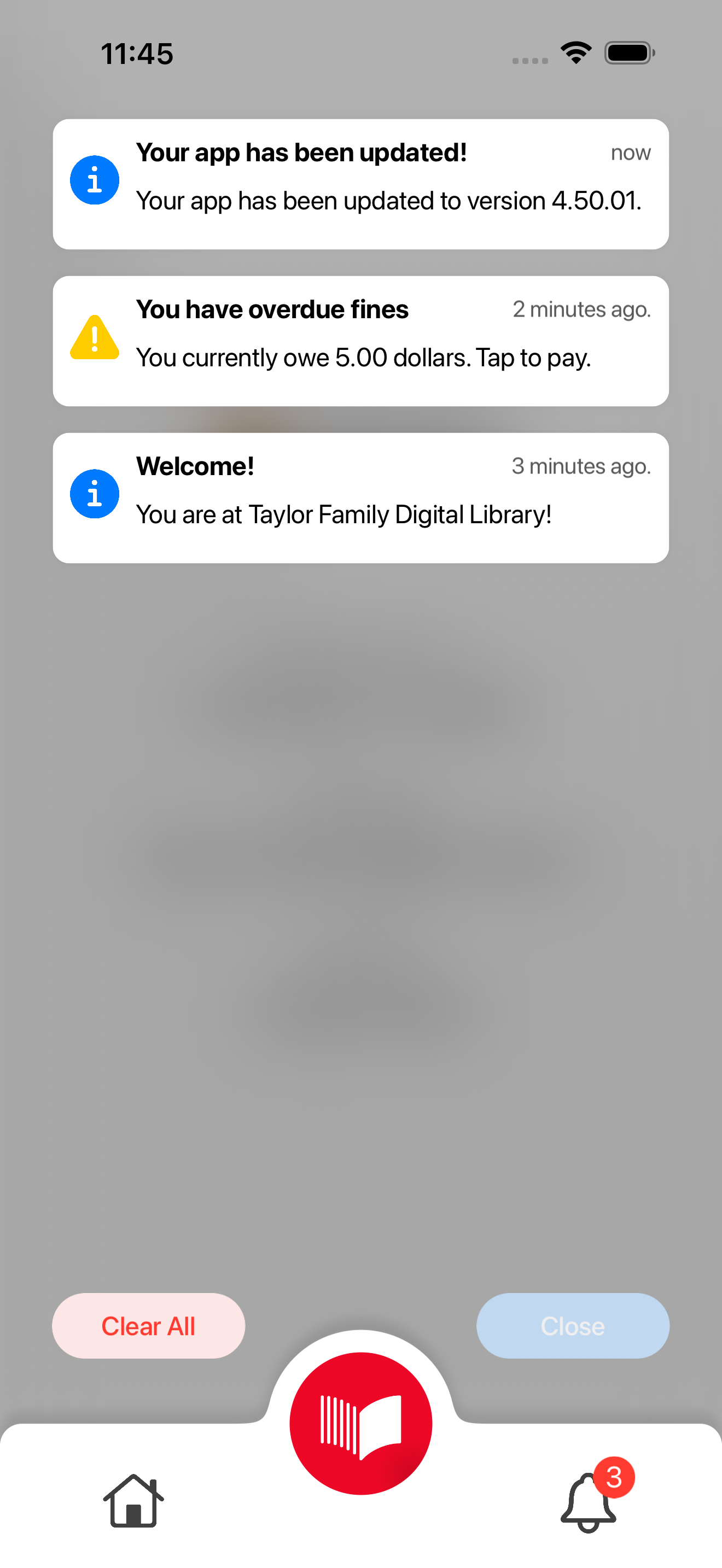
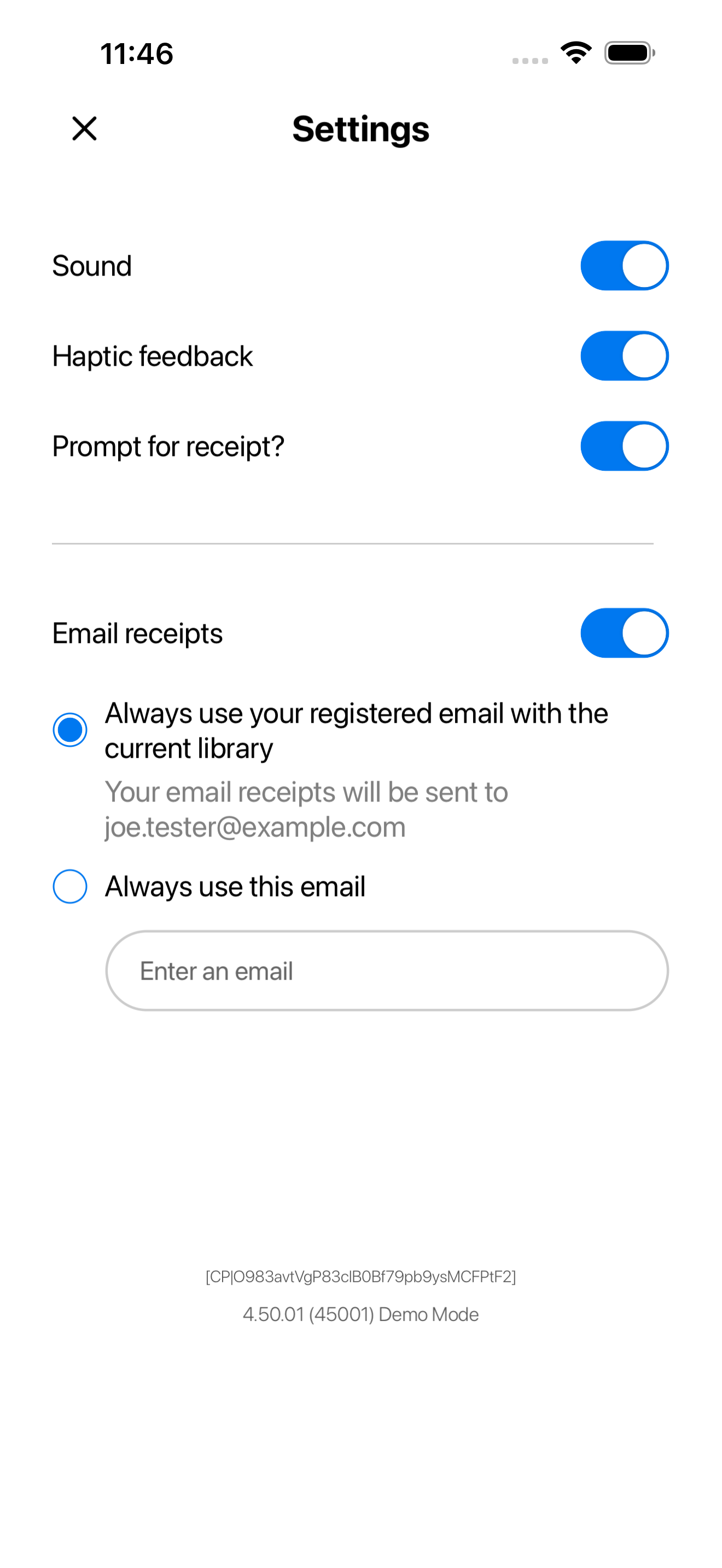
branded-app-phone-screenshot-carousel

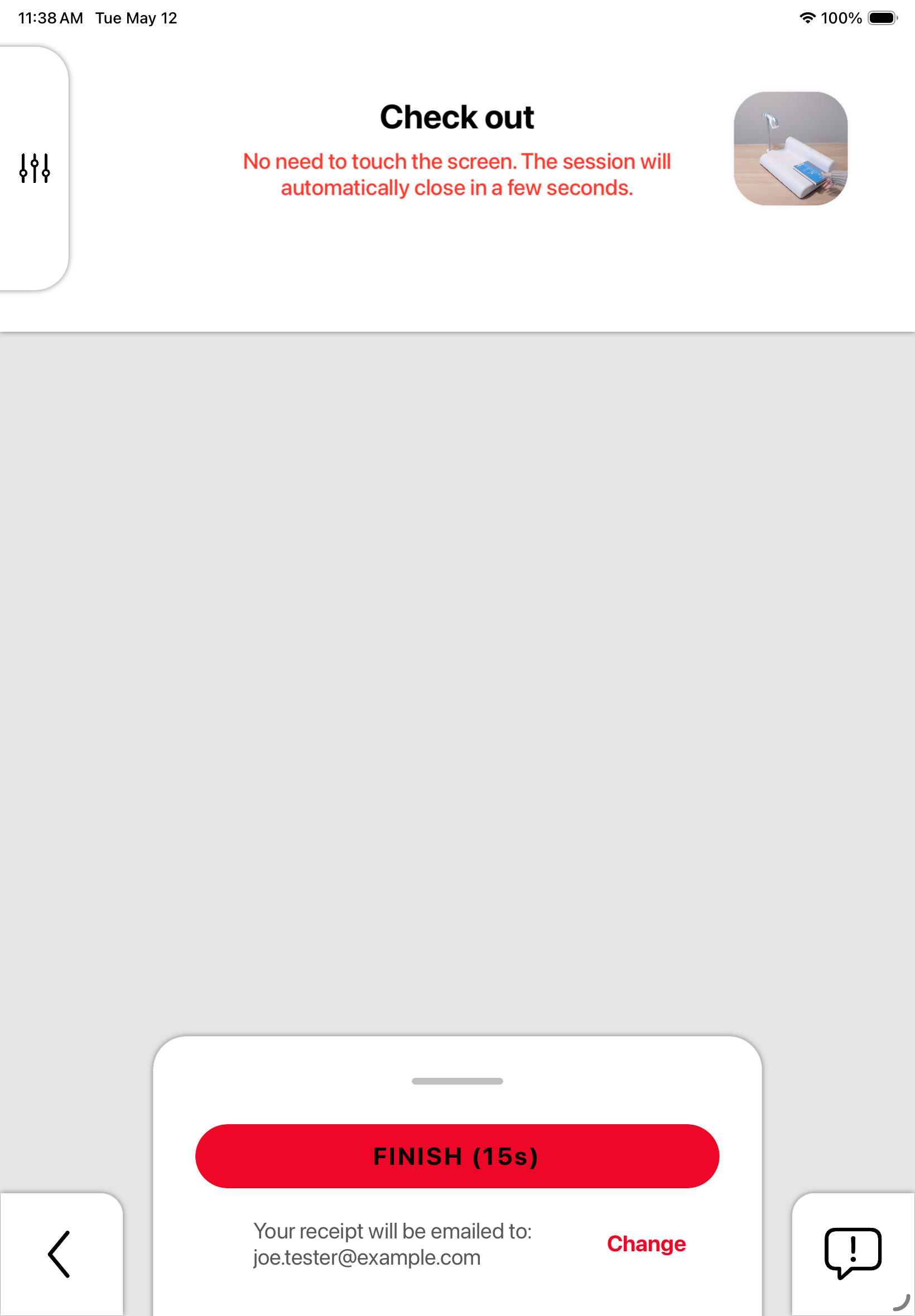
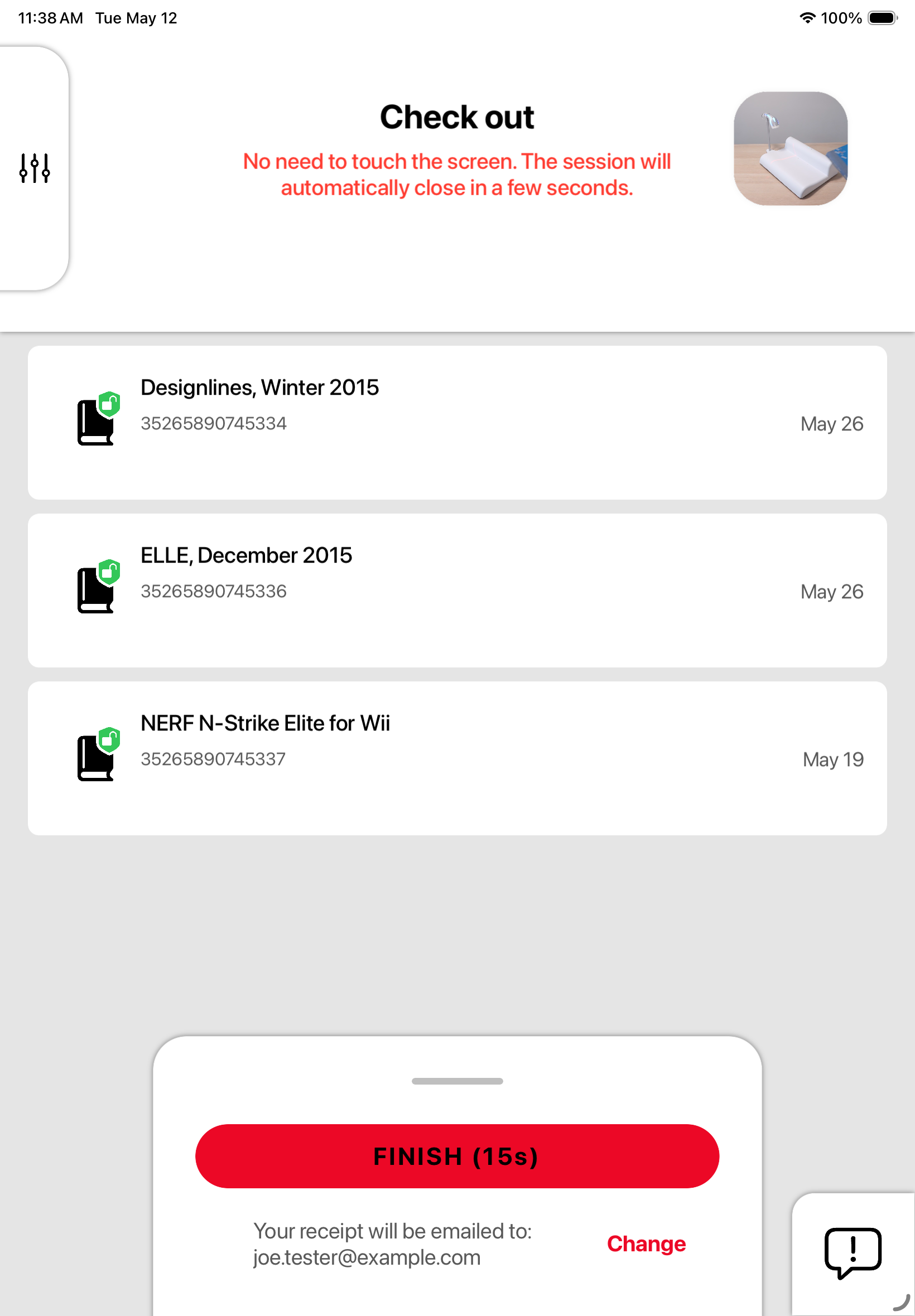
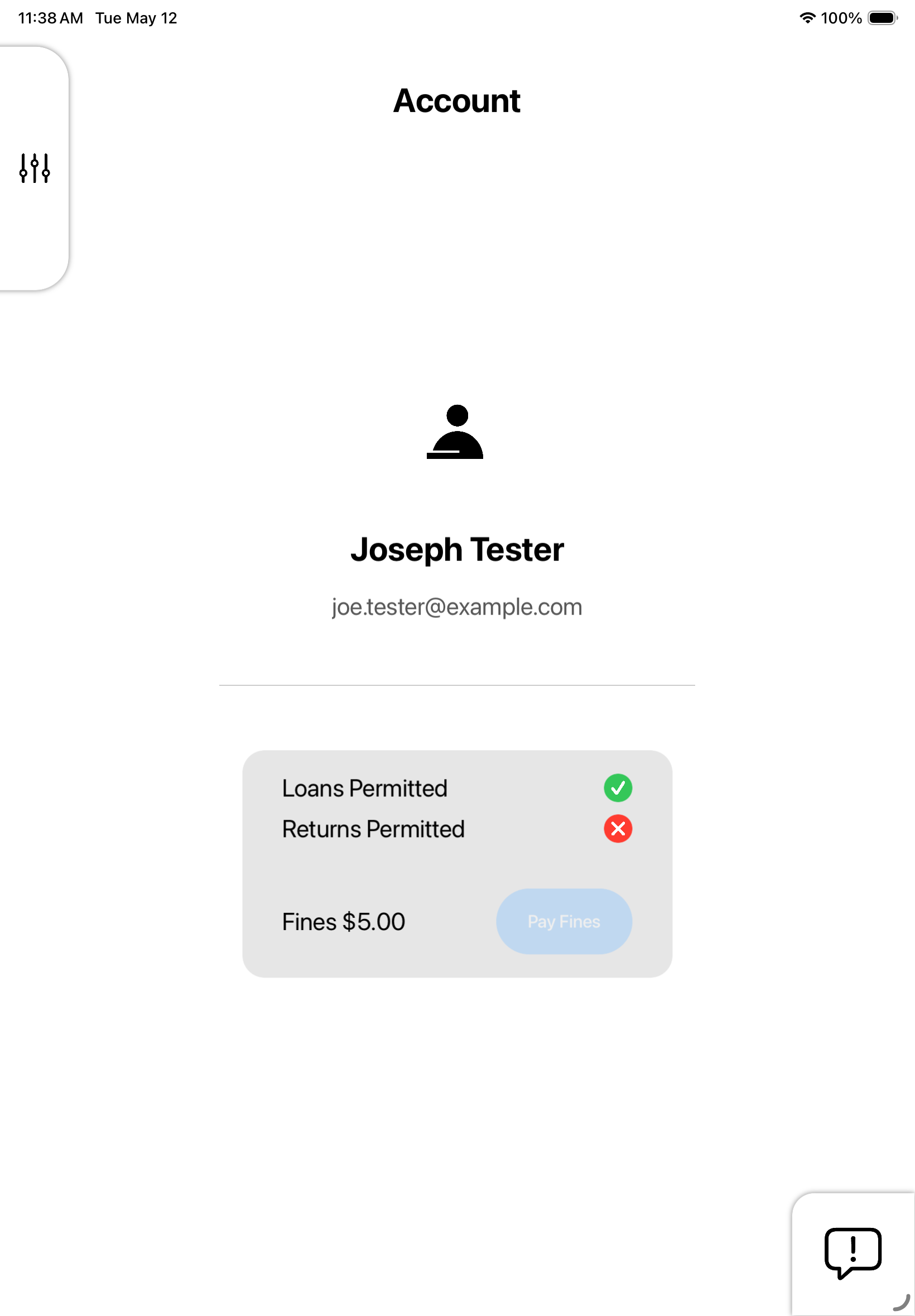
Screenshot 1
Screenshot 2
Screenshot 3
Screenshot 4
Screenshot 5
Screenshot 6
Screenshot 7
Screenshot 8
Screenshot 9

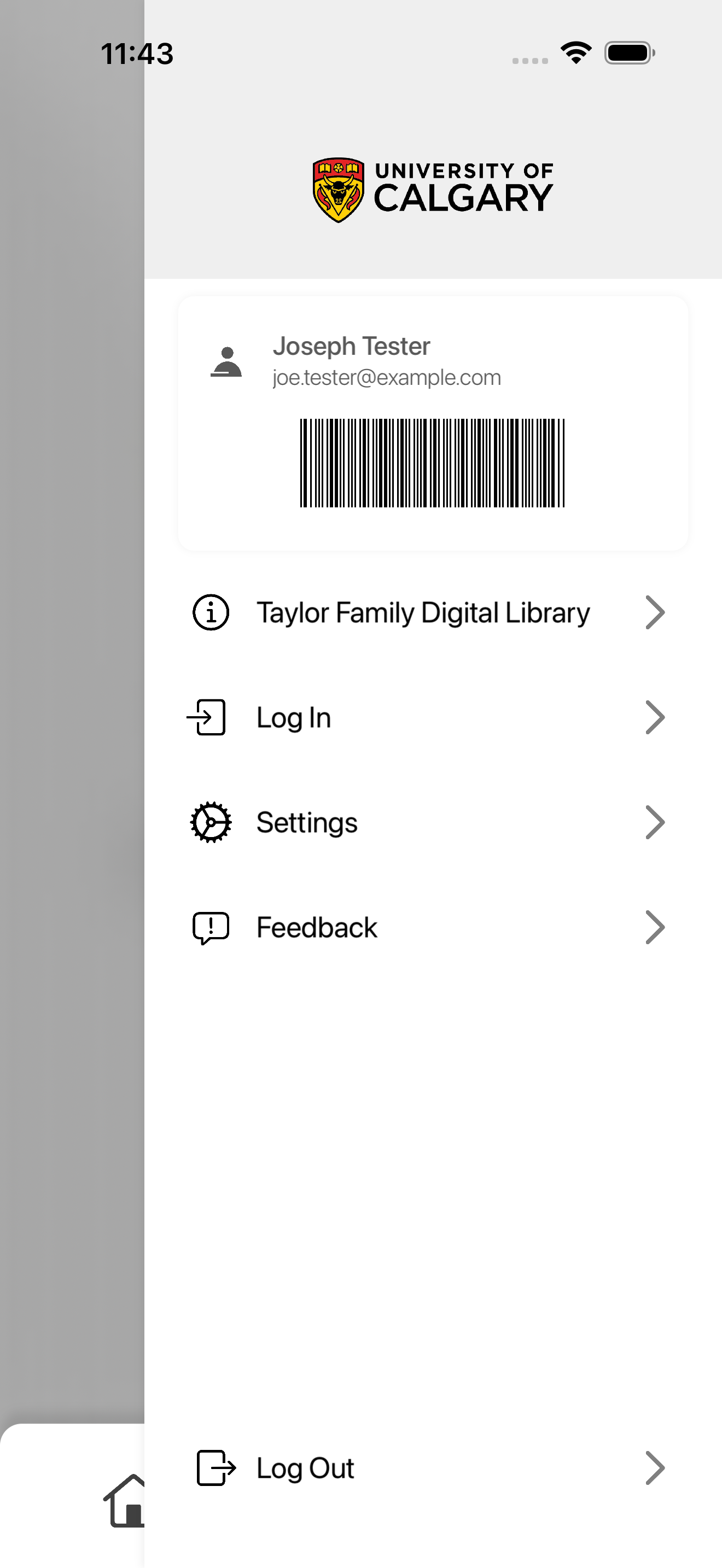
Screenshot 1
Screenshot 2
Screenshot 3
Screenshot 4
Screenshot 5
Screenshot 6
Screenshot 7
Screenshot 8
Screenshot 9